dsh-add-assets
Verified@achasoft/dsh-add-assets · v0.3.0 · MIT · Web UI
Composer add-assets plate for the DeepSeek Harness Web Client: an options menu on the composer's + button (files, folders, slash commands) and a Claude Code-style draft attachment preview
Install
dsh plugin add @achasoft/dsh-add-assets Confirm the layer applied with dsh --profile default --dump-config — see the install guide.
Source
Tags
Readme
@achasoft/dsh-add-assets
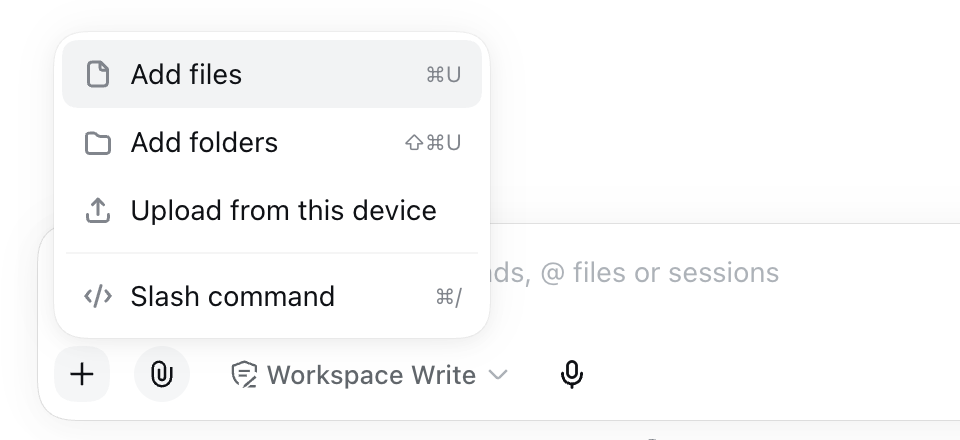
A plugin for the DeepSeek Harness (dsh) Web Client. It replaces the composer's + button with a menu for adding files and folders, uploading images, or opening the slash-command menu. Files and folders come from a picker that can browse the project or the whole Host machine. Picked paths go into the draft as inline reference chips. Pending attachments show as cards, and images open in a full-size preview.
Features
The + menu
The menu sits at the start of the composer's tool row. While replaceCommandButton is on, the harness's own + is hidden, so the row keeps one +.
| Row | What it does | Default shortcut (macOS / other) |
|---|---|---|
| Add files | Opens the picker in files mode. | ⌘U / Ctrl+U |
| Add folders | Opens the picker in folders mode: only directories are listed, and they can be selected. | ⇧⌘U / Ctrl+Shift+U |
| Upload from this device | Opens the browser's file chooser for PNG, JPEG, WebP, and GIF images. The composer validates them the same way it validates paste and drop. Shown only while deviceUpload is on. |
none |
| Slash command | Opens the composer's own slash-command menu. | ⌘/ / Ctrl+/ |
If neither picker scope is available, the two picker rows are disabled with a note. The same happens to the command row when the harness has no trigger pipeline (@deepseek-ai/dsh-client-ui-input-trigger). The menu is disabled while a message is being submitted.
The picker: Project and This machine
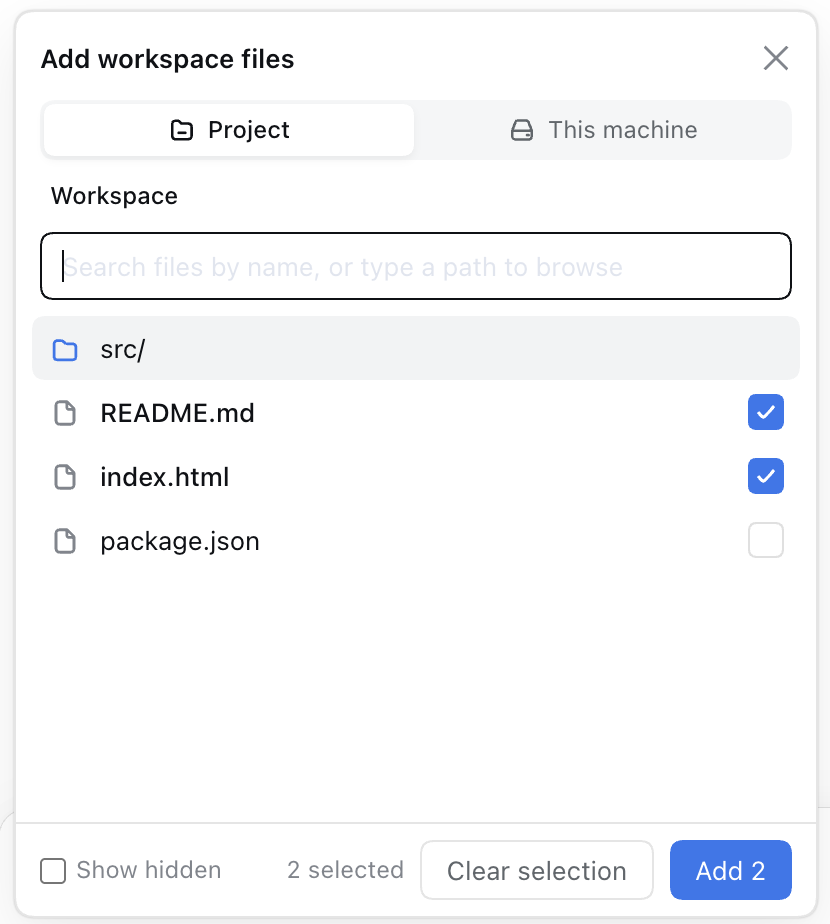
When both scopes are available, tabs at the top of the picker switch between them:
- Project lists the session's working directory through the harness's file-reference provider (
@deepseek-ai/dsh-file-reference-localin the stock web profile). Typing a name at the root searches the whole workspace. Typing a path containing/lists that directory. Paths are workspace-relative. - This machine lists the Host filesystem through this plugin's own
addAssets.browseendpoint. It opens at the Host account's home directory and shows one level at a time, with directories first. The breadcrumbs run from the filesystem root, and the home directory's crumb is labelled Home. Paths are absolute. The tab is offered only whileoutsideWorkspaceis on.
In either scope, you can type a path into the search field to list that directory. Whatever follows the last separator filters the list. In This machine, /tmp/x lists /tmp filtered by x, and ~/Down lists your home directory filtered by Down. On Windows, only drive-letter paths (C:\Users\) and ~\ are accepted.
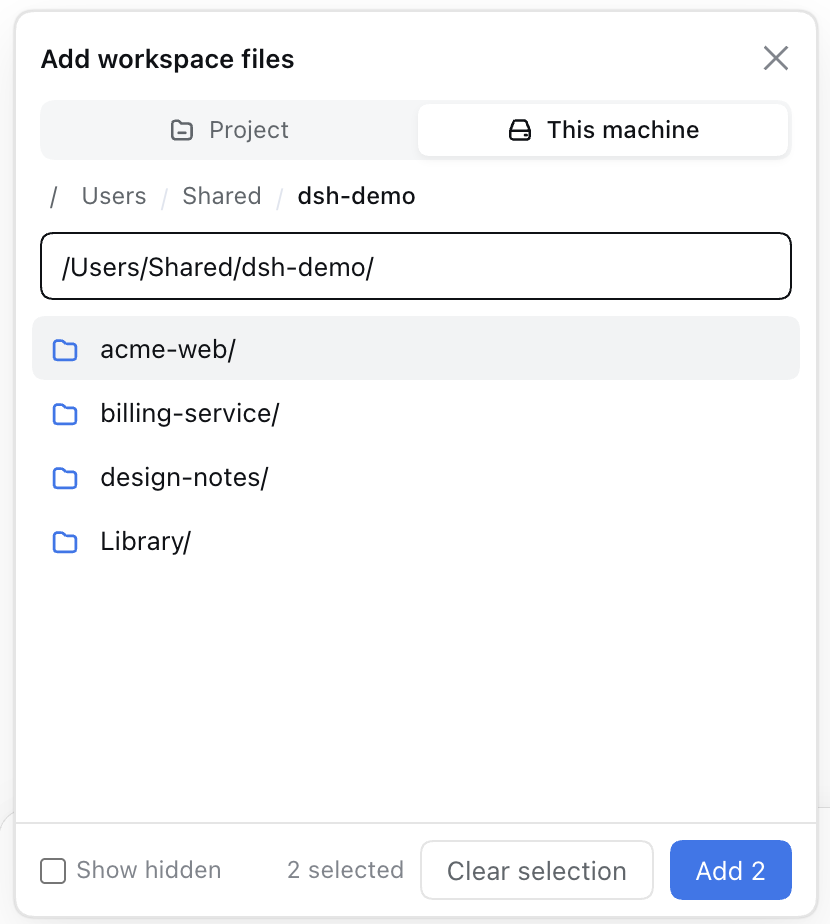
Your selection is kept when you change directories, filter, or switch tabs. You can collect files from both scopes and add them all in one step. Show hidden reveals dot-prefixed entries.
| Key (in the search field) | Action |
|---|---|
↑ / ↓ |
Move the highlight |
Enter |
Files mode: open the highlighted folder, or tick the highlighted file. Folders mode: tick the highlighted folder. |
→ (caret at end of field) |
Open the highlighted folder |
← (caret at start of field) |
Go up one level |
Cmd+Enter or Ctrl+Enter |
Add everything selected |
Esc |
Close without adding |
During IME composition, Enter, the arrow keys, and Esc are left to the input method.
Reference chips
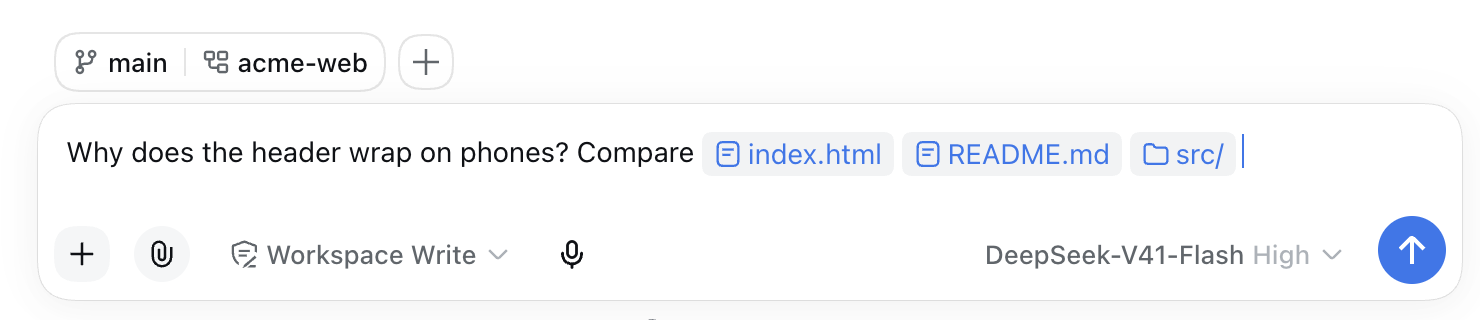
Each picked path becomes an inline reference chip. The chip shows the basename, with a trailing / for a folder. Its hidden value is the @path mention that the composer's own @ completion would write. Paths containing whitespace are quoted, as in @"My Files/a.txt". When the message is sent, the model receives that mention text. Copying a chip copies it too.
If the harness has no trigger pipeline, there is nothing to turn chips into text on send. In that case the plugin appends the plain @path text to the draft instead.
A path containing a double quote or a control character cannot be written as a mention. Such picks are skipped, and a notice under the + says how many were skipped.
Attachment previews
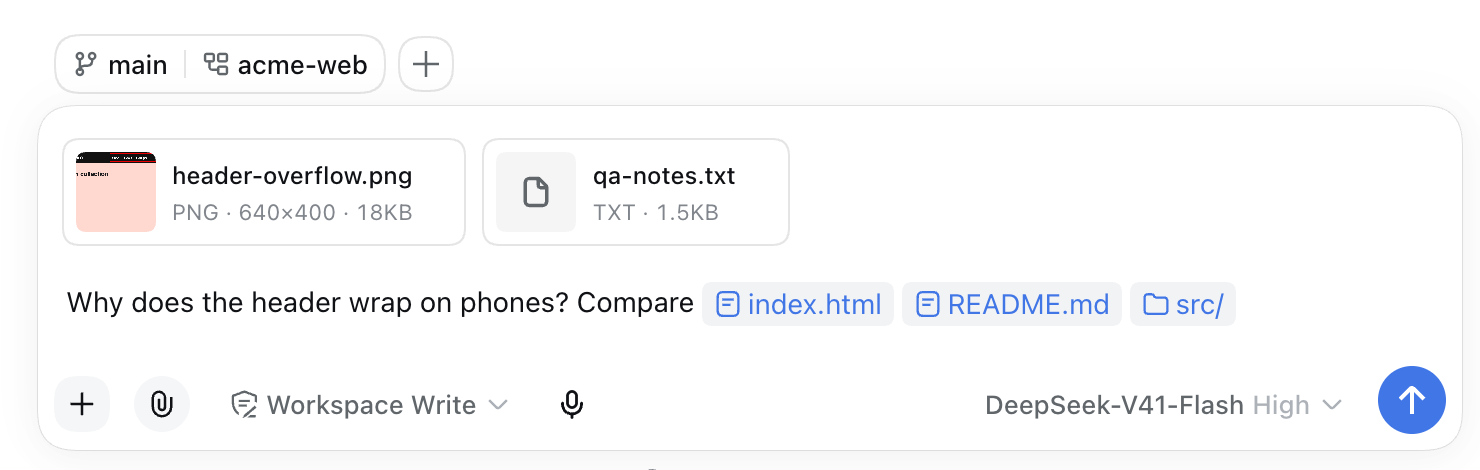
The plugin takes over the composer's attachment row (conversation.input.attachments):
Image cards show a thumbnail, the file name, and a details line with format, pixel size, and byte size. Click a card to open the full-size preview. In the preview,
←and→(or the side buttons) move between images, the trash button removes the current image, andEsc, the close button, or a click on the dimmed backdrop closes it.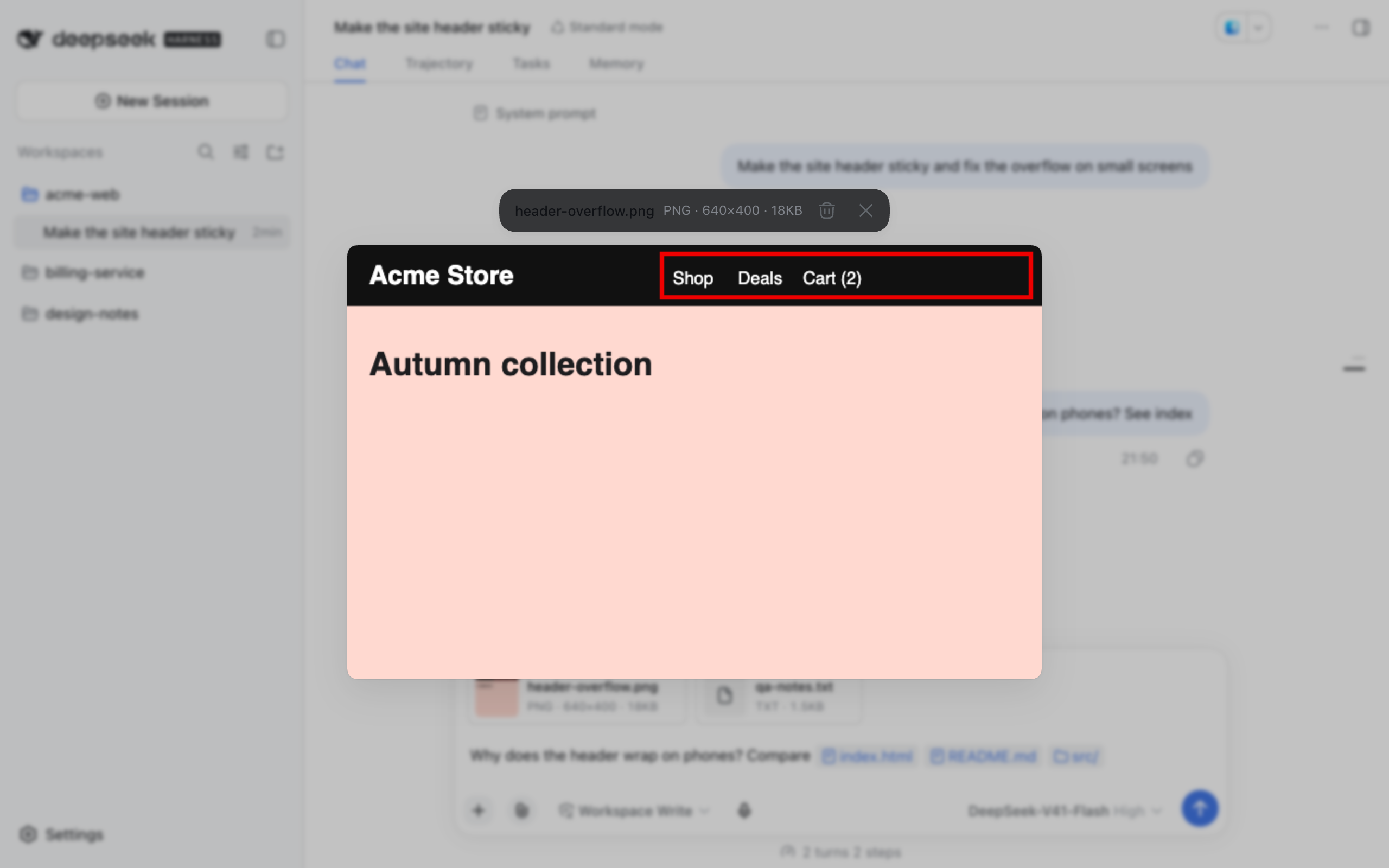
File cards are for non-image attachments the composer accepts. While a file uploads, the card says so. If the upload fails, click the card to retry.
Every card has a remove button.
Dragging files over the page shows a drop target. The plugin handles the drop, because the shipped attachment row it replaces used to. If the composer cannot accept files at that moment, the target says so.
Settings card
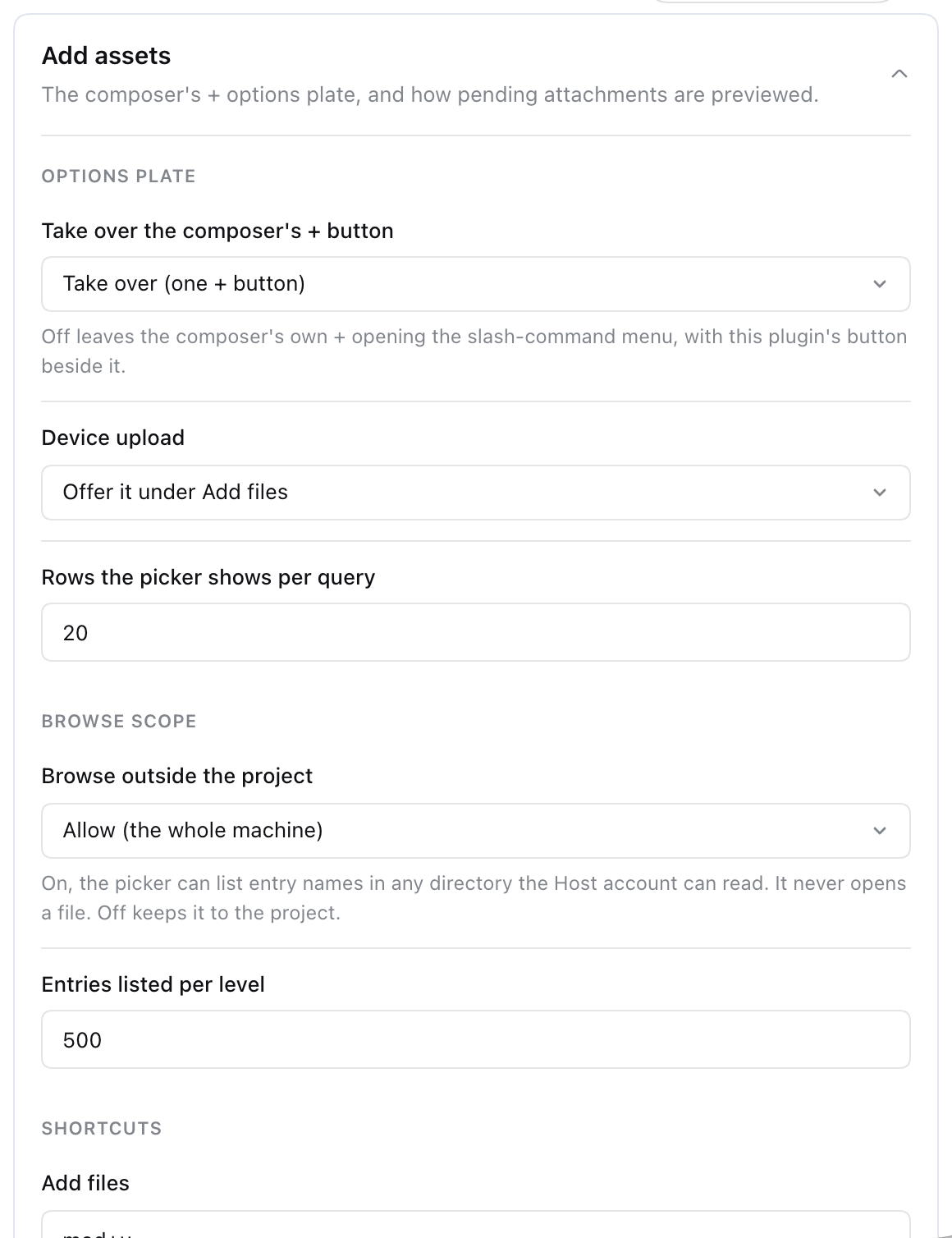
The Add assets card on Settings → Plugins edits every configuration key. Edits are held until you click Save, and Discard drops them. Save stays disabled while a shortcut or number field is invalid. If the harness reports the section as not writable, the card is read-only.
Requirements
- dsh 0.1.5-rc.2 with the web profile (
dsh web). The plugin was built and tested against this release. Its composer integration depends on details of that release, listed under Known limitations. - Node.js
^22.19 || >=24(enginesinpackage.json). - pnpm on
PATH, whichdsh pluginuses to install packages.
The plugin declares @deepseek-ai/cordis, @deepseek-ai/dsh-file-reference, @deepseek-ai/schemastery, and @deepseek-ai/dsh-typert-protocol as peerDependencies. All four ship with the harness. Its browser half asks the harness to inject dsh-api-remotes, dsh-client-locale, dsh-client-ui-conversation, dsh-client-ui-input-trigger, dsh-client-ui-settings, and dsh-client-ui-settings-plugins (the dsh.client.inject field in package.json).
These harness services are optional, and the plugin works without them:
| Harness service | Without it |
|---|---|
File-reference provider (remote.fileReferences) |
No Project tab. The picker offers This machine only. |
Input trigger pipeline (inputTriggers) |
The Slash command row is disabled, and picks are written as plain @path text instead of chips. |
Settings provider (settings) |
The profile's values are used as they are, and the settings card cannot change them. |
Operating systems. POSIX hosts use absolute paths. Windows hosts accept only drive-letter paths: UNC (\\server\share) and drive-less (\foo) paths are refused. The Windows path rules are covered by unit tests only and have not been tried on a live Windows host.
Install
dsh plugin --profile <name> runs the rest of the command as a pnpm command in that profile's directory. After a successful install, it adds any package that declares dsh.bundle to the profile's bundle list:
dsh plugin --profile web add @achasoft/dsh-add-assets
A packed tarball installs the same way:
dsh plugin --profile web add ./achasoft-dsh-add-assets-0.1.0.tgz
Restart dsh web afterwards. To confirm the plugin loaded, dump the composed configuration and look for its layer, # == @achasoft/dsh-add-assets:
dsh --profile web --dump-config
To uninstall:
dsh plugin --profile web remove @achasoft/dsh-add-assets
This also removes the package from the profile's bundle list. If your profile's cordis.patch.yml still has a patch targeting add-assets, the harness warns patch: entry "add-assets" not found and skips it. Delete that patch as well.
How the patch layers
The package's cordis.patch.yml becomes one layer of the profile. It inserts two rows:
Row id |
name |
Role |
|---|---|---|
add-assets |
@achasoft/dsh-add-assets/host |
Host half: the settings section and the addAssets.browse endpoint. Carries the configuration. |
add-assets-ui |
@achasoft/dsh-add-assets |
Browser half. Must stay the bare package name, because the Web Client finds a plugin's browser half by resolving <name>/package.json. |
Layers apply in this order: bundle patches in bundle-list order, then $DSH_HOME/profiles/<name>/cordis.patch.yml, then $DSH_HOME/cordis.patch.yml, then any --patch files. To override the configuration, target the row by id in a later layer. A patch replaces the row's whole config, and the schema requires every key, so list all ten:
- id: add-assets
  config:
    replaceCommandButton: true
    deviceUpload: true
    outsideWorkspace: false
    browseMaxEntries: 500
    filesShortcut: mod+u
    foldersShortcut: mod+shift+u
    commandShortcut: alt+/
    pickerResultLimit: 20
    previewDensity: compact
    previewDetails: true
The patch file is a top-level list of patches, as above. Do not wrap it in a patch: key: the harness rejects that with patch: id is required for non-insert patches.
Values from the profile are only starting values. Anything saved from the settings card is stored by the harness settings provider and takes precedence over them.
Configuration
The schema defines no defaults, and a row missing any key fails at load. The defaults below are the values in the shipped cordis.patch.yml. The settings card can edit every key.
| Key | Default | Allowed | Meaning |
|---|---|---|---|
replaceCommandButton |
true |
boolean | Hide the harness's own +. With false, both buttons show: the harness's + still opens the slash-command menu, and this plugin's + sits beside it. |
deviceUpload |
true |
boolean | Show the Upload from this device row. Paste and drop work either way. |
outsideWorkspace |
true |
boolean | Offer the This machine tab. The endpoint checks this value on every call. See Security. |
browseMaxEntries |
500 |
integer 1–2000 | Most entries the Host returns for one directory level. |
filesShortcut |
mod+u |
shortcut or "" |
Opens the picker in files mode. |
foldersShortcut |
mod+shift+u |
shortcut or "" |
Opens the picker in folders mode. |
commandShortcut |
mod+/ |
shortcut or "" |
Opens the slash-command menu. |
pickerResultLimit |
20 |
integer 1–200 | Rows the picker shows per query. In Project scope the provider applies its own cap, maxResults (default 20), so raise that setting as well. |
previewDensity |
card |
card, compact |
card shows a thumbnail, name, and details line. compact shows a small thumbnail and name, with no details line. |
previewDetails |
true |
boolean | Show the details line in card density. Upload progress and failures are shown regardless. |
Shortcut syntax
- A shortcut is a
+-separated, case-insensitive list of modifiers followed by exactly one key. - Modifiers:
mod,cmd,command,ctrl, andcontrolall mean the platform accelerator: Command on Apple devices and Ctrl elsewhere.altandoptionmean Alt.shiftmeans Shift. - Key: a single character, or one of
enter,escape/esc,space,tab,backspace,delete,up,down,left, orright. - Every shortcut must include
modoralt. Shift alone does not count. Shortcuts listen on the whole page, so a plain-key shortcut would take that key away from every text field. ""turns the shortcut off.- The Host refuses an invalid shortcut at load with an error that names the field, and the settings card will not save one.
- Shortcuts are ignored during IME composition and while a message is being submitted. On macOS, holding Ctrl as well as Command stops a
modshortcut from matching.
RPC endpoints
The Host half registers one Typert Remote endpoint. The browser half mounts it as ctx.remote.addAssets and calls it through the harness gateway on the /api route. The wire format is the harness's own. This endpoint is not meant as a standalone HTTP API.
addAssets.browse(path: string, query: string) → AssetBrowseResult
| Parameter | Meaning |
|---|---|
path |
Directory to list: "" or ~ for the Host home, ~/…, or a fully qualified path. |
query |
Case-insensitive substring filter on entry names, applied before the entry cap. |
On success the result is { ok: true, listing }. listing contains:
path: the directory listed.home: the Host account's home directory.crumbs:{ name, path }for each directory from the filesystem root down topath.entries:{ name, path, kind: 'file' | 'directory', hidden }, directories first, each group sorted by name.truncated: whether the cap cut the level.
Failures are also returned as values, { ok: false, code, message }, with these codes:
code |
When |
|---|---|
disabled |
outsideWorkspace is false |
not-a-directory |
The path names something other than a directory |
unreadable |
The path is not fully qualified, does not exist, or cannot be read |
The contract lives in generated/, and the types are exported from @achasoft/dsh-add-assets/host.
Security and trust model
- Authentication. Browse calls use the harness's
/apiroute, which rejects a request with403when its Host header is not trusted (loopback, a LAN IP address, or a configuredtrustedHostsentry) and with401when it lacks the browser session cookie. The cookie is issued from the launch token. - What browse can see. Any directory the Host process's account can read. It returns entry names, kinds, absolute paths, and the home directory path. It follows symlinks to report what they point to and omits broken ones. Other entry types (sockets, FIFOs, devices) are skipped.
- What browse does not do. It never opens a file or returns file contents: it only lists directories and stats symlinks. A chip sends the model
@pathtext, not the file. Whether the agent can then read that path depends on the agent's own tools and permissions. outsideWorkspaceis a preference, not a security boundary. Anyone using the Web Client can turn it back on from the settings card. The design assumes that person is the authenticated operator, whose agent can already run shell commands on the Host. If some browser users must not see the machine's directory tree, do not install this plugin for them, and do not give them a shell-capable agent either. Settingfalsein the profile will not stop them.- Limits.
browseMaxEntriesis capped at 2000 by the schema, so a write from the browser cannot raise it. A directory is read as a stream into a sorted window of at most that many entries, so a huge directory costs the Host only the window. At most 8 symlinks are resolved at a time. On Windows, UNC paths are refused, so the Host never connects to a network server named by the browser.
Known limitations
- Chips are placed at the end of the draft, not at the caret. The slash-command menu also opens at the end of the draft, because the composer in dsh 0.1.5-rc.2 is a rich-text (Lexical) editor whose caret position the plugin does not read.
- Picks can be dropped silently. If the draft changes while several chips are still being placed (for example, you type during that moment), the remaining picks are abandoned without a notice.
- Unreferenceable paths are skipped. A path containing
"or a control character cannot be written as a mention. - Cancelling a listing takes effect only between entries. A read blocked on a hung network mount may not stop when you move on.
- This machine has no Home button. Once you browse outside your home directory, the breadcrumbs no longer include Home. Type
~in the search field to go back. - This machine filters one level at a time. Only Project scope searches a whole tree.
- Project scope has its own limits. The provider caps each answer at its
maxResults(default 20) without saying it did so, so the picker cannot report the level as truncated. The provider also hides dot entries unless the typed name starts with., and it skips excluded directories, so Show hidden reveals nothing there. - Picker titles say "Add workspace files" and "Add workspace folders" even on the This machine tab.
- The harness's
+is hidden, not replaced. The harness offers no slot for that button. The plugin finds it inside the composer card bybutton[aria-haspopup="listbox"]and marks it hidden. If a future harness changes that markup, both buttons show. - The attachment row replaces the shipped one. The slot renders only its lowest-priority entry, and this plugin registers at priority
-1. Another plugin registering there at a lower priority would replace this plugin's row, including its drop handling. - The full-size preview does not trap focus. It sets
aria-modaland restores focus when it closes, but Tab can reach the page behind it. - Windows path handling has not been tried on a live host.
Development
Development needs a sibling ../deepseek-harness checkout, because the link: devDependencies in package.json point into it. The build output (lib/, types/, tsbuild/) is not committed.
| Command | What it does |
|---|---|
npm run build |
tsc -p tsconfig.build.json, then tsdown (writes lib/host.js, lib/client.js, and the other entries) |
npm test |
Checks that generated/ matches src/host/ (check:typert), then runs vitest run |
npm run check:typert |
The Typert freshness check on its own |
npm run typecheck |
tsc --noEmit |
Run npm run build before npm test. tests/client-bundle.spec.ts renders the built lib/client.js and fails, naming the fix, when that file is missing or older than src/:
npm run build && npm test
generated/ holds the Typert contract for addAssets.browse. Only the harness's generator can produce it, so it is committed. After changing the endpoint or any type it uses, regenerate it:
node scripts/regen-typert.mjs ../deepseek-harness
The script edits files in the harness checkout and restores them from git when it finishes. Never run two regenerations at the same time.
License
MIT. See LICENSE.