dsh-desktop-ui
Verifieddsh-desktop-ui · v0.1.9 · MIT · Web UI
Desktop mode for the DeepSeek Harness web GUI: open sessions as movable, resizable windows with a taskbar.
Install
dsh plugin add dsh-desktop-ui Confirm the layer applied with dsh --profile default --dump-config — see the install guide.
Source
Tags
Readme
dsh-desktop-ui
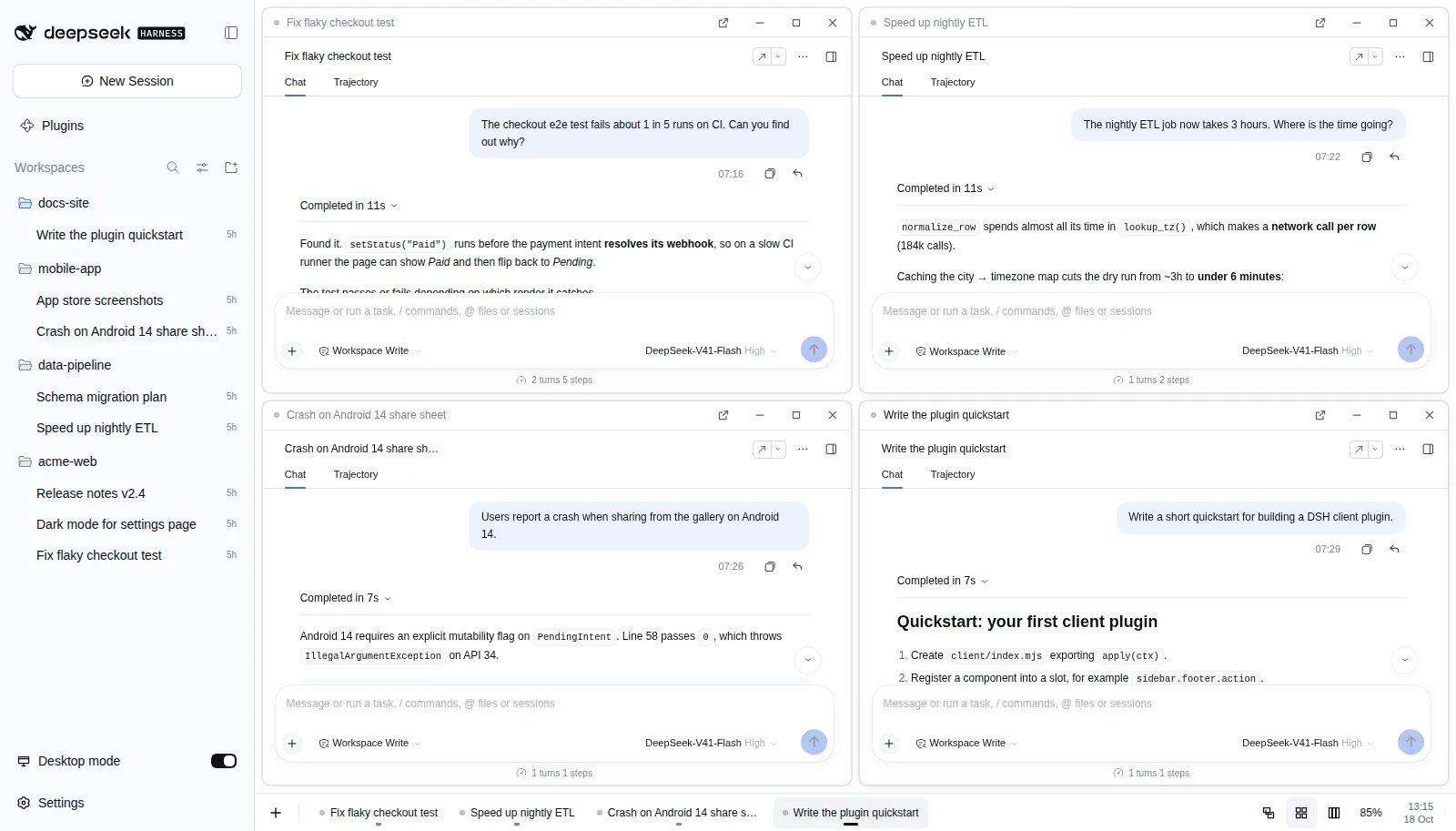
Desktop mode for the DeepSeek Harness web GUI. Keep the sidebar exactly as it is, and turn the conversation area into a desktop where every session is a movable, resizable window — with a taskbar along the bottom.


- Source code: github.com/mrbeandev/dsh-desktop-ui
- npm package: npmjs.com/package/dsh-desktop-ui
Contents: Why · Install · Features · Compatibility · Development · Local setup · Release checklist
Why this plugin exists
DSH shows one conversation at a time. When you juggle several sessions — a long agent run, a quick question, a code review — you keep clicking back and forth in the sidebar. Desktop mode lets you keep them all on screen at once, arrange them side by side, and park the rest in a taskbar.
Install from npm
dsh plugin --profile web add dsh-desktop-ui
Restart dsh web when asked, then refresh the DSH page. A Desktop mode switch
appears in the sidebar, directly above Settings.
To remove:
dsh plugin --profile web remove dsh-desktop-ui
Restart and refresh. The normal conversation view comes back unchanged; only the
browser-local window layout remains in localStorage.
Features
| Feature | What it does |
|---|---|
| Desktop mode switch | Sits directly above Settings. Off by default; the choice persists in this browser. Turning it off returns to the normal conversation on the focused window's session. |
| Sessions as windows | Clicking a session in the sidebar opens it as a window. A session can only have one window — clicking it again restores and focuses the existing one. Every window shows the same conversation UI as the main chat — header, view tabs, transcript, composer, and anything other plugins add (for example dsh-rewind-plugin's rewind button under your messages). |
| Window titles | Every title bar reads `workspace |
| Find it in the sidebar | Hovering a window highlights its session and its workspace in the sidebar. If that workspace is collapsed, it opens while you hover and closes again when you move away (unless you clicked in the sidebar meanwhile). Turn this off in Plugins → dsh-desktop-ui → Highlight the sidebar on hover; the choice is saved with the layout. |
| Taskbar tooltips | Hovering (or keyboard-focusing) a taskbar button shows `workspace |
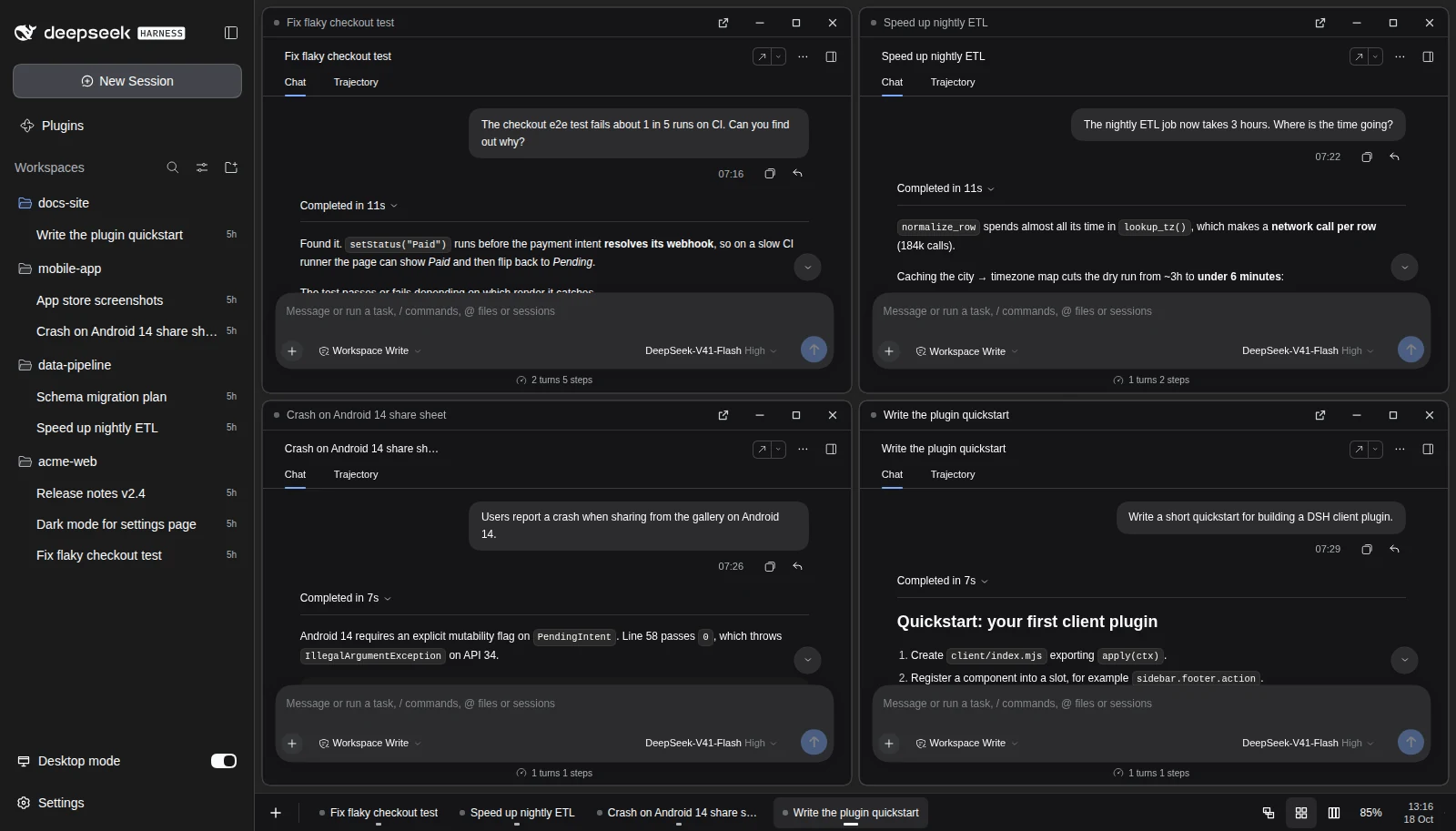
| Wallpaper and transparency | Plugins → dsh-desktop-ui → Desktop background has a live preview. Wallpaper: PNG, WebP, GIF, JPEG, AVIF or SVG, up to 12 MB, with Fill / Fit / Center / Tile; transparent pixels in the image show the theme colour. Wallpaper opacity blends the image into the theme colour. Canvas opacity is how much of the theme-coloured canvas covers the wallpaper (0% = wallpaper fully visible, 100% = hidden); without a wallpaper it makes the empty desktop see-through to what is behind it. Taskbar opacity turns the taskbar into frosted glass below 100%. Windows always stay solid. Choosing a first wallpaper sets canvas opacity to 0% so the image is visible right away. Reset appearance restores the defaults. |
| Window controls | Drag the title bar to move; drag any edge or corner to resize; double-click the title to maximize/restore; minimize, maximize and close buttons. |
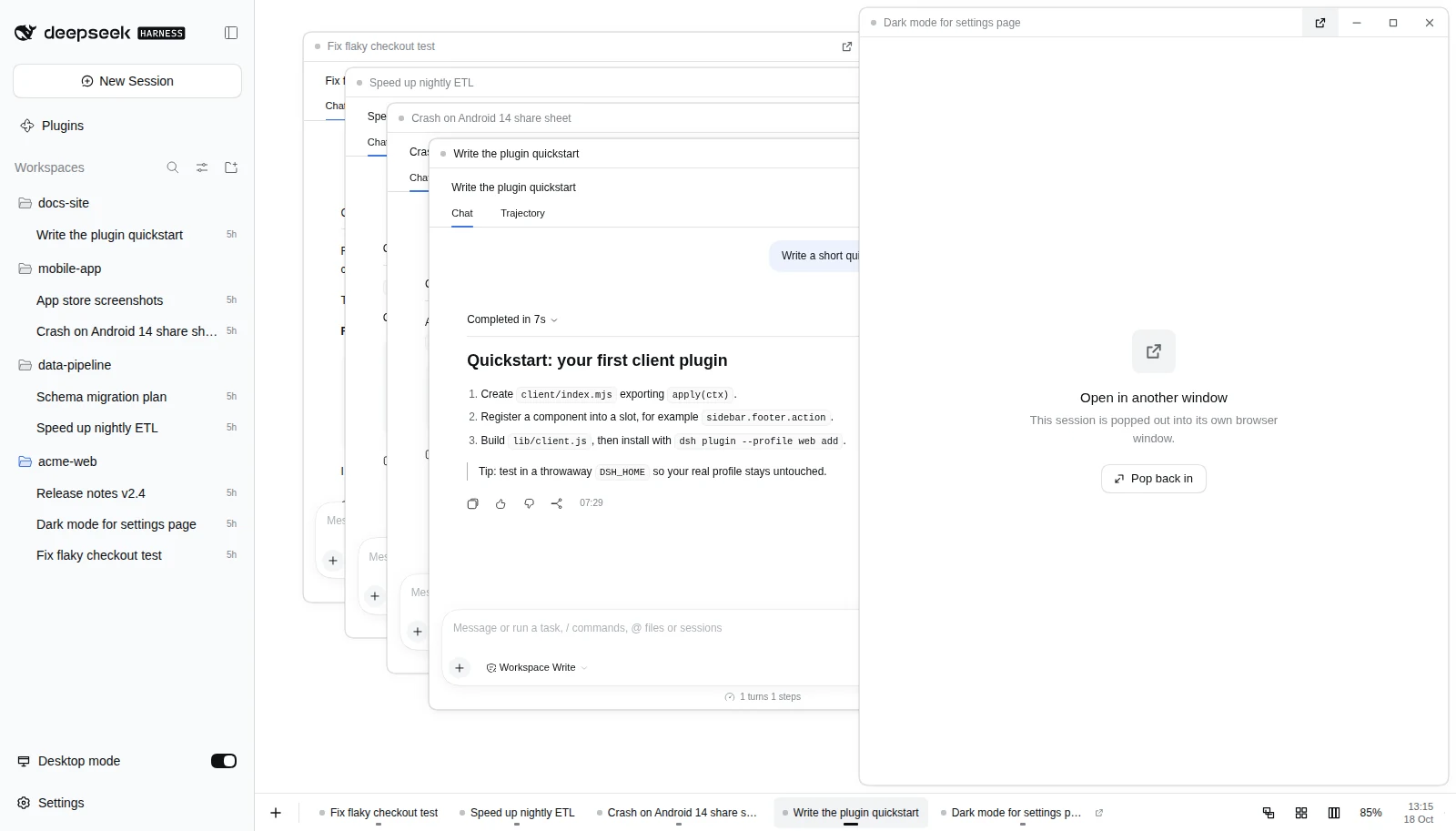
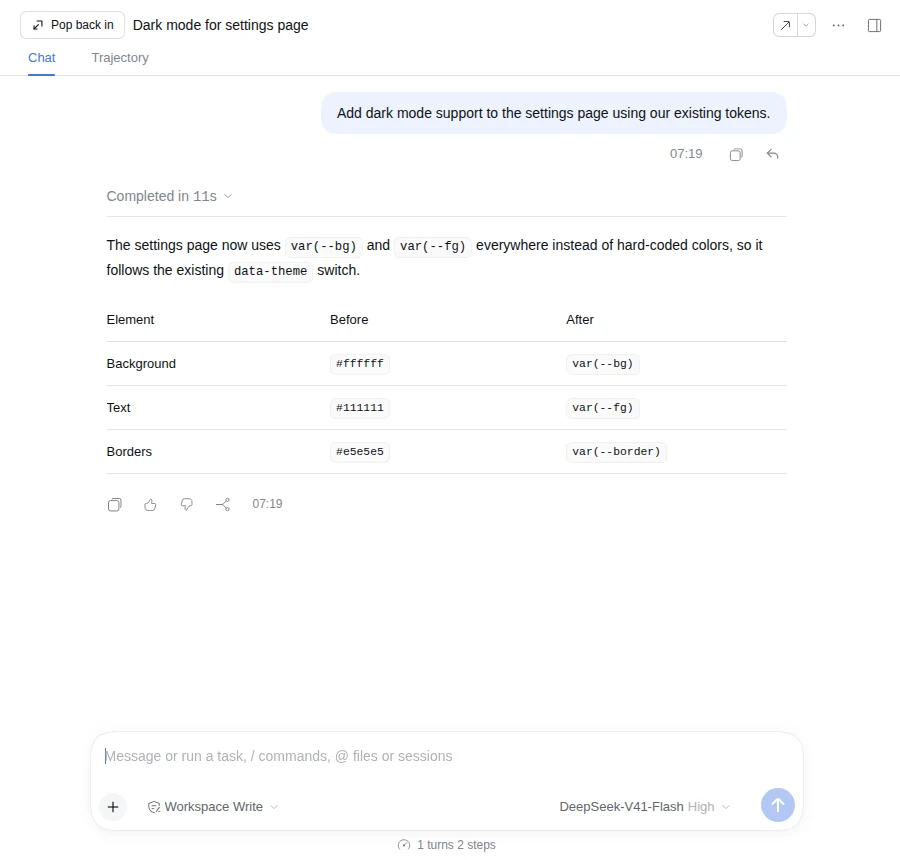
| Pop out (browser only) | The ↗ button left of minimize opens that session in its own browser window, showing just that conversation (no sidebar). The desktop keeps a placeholder with Pop back in; the popout window has a Pop back in button in its header too. Either one closes the popout and returns the session to the canvas. Closing the popout window yourself also brings it back. The button is hidden in the DeepSeek desktop app, which is detected through the data-platform marker its preload sets on <html> (the same signal DSH's shortcut layer uses). |
| Linked borders | When windows sit side by side or stacked (for example after Tile or Side by side, or a left/right snap), dragging the border between them resizes all of them at once: as one grows, its neighbour shrinks, and the gap stays the same. In a grid the whole straight split moves together. It stops at each window's minimum size. Corner grips and windows that don't touch still resize on their own. |
| Snapping | Drag a window to the left or right edge to fill that half, or to the top to maximize. |
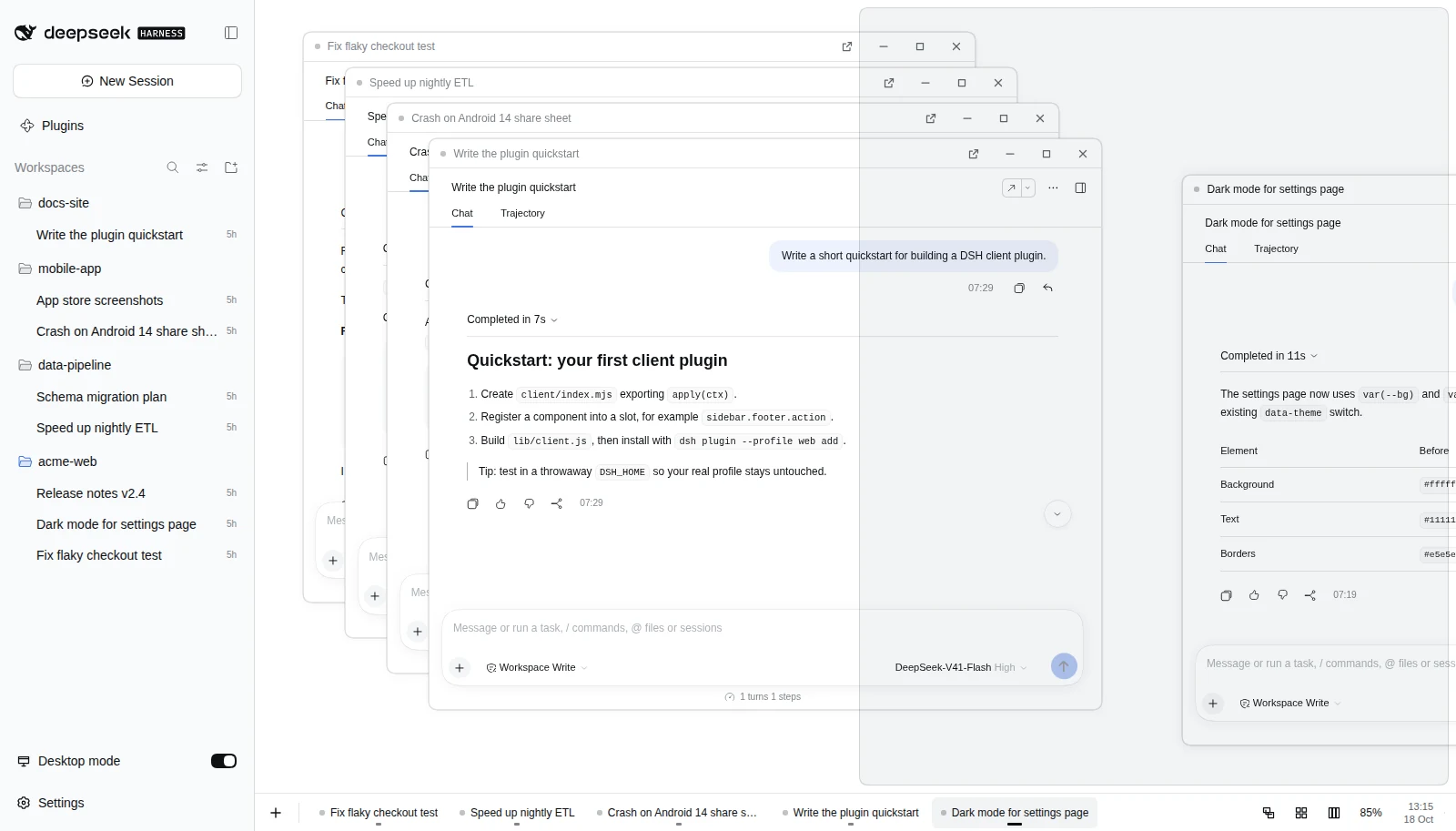
| Taskbar | New session button, one button per window (click to focus, click the focused one to minimize, a dot shows running sessions), Cascade / Tile / Side-by-side layouts, a clock, and a Show desktop strip at the far right. |
| Window text size | Window contents are the stock UI scaled down uniformly (default 85%), so every element — including ones added by other plugins — shrinks together. Click the percentage in the taskbar to make it larger, right-click to make it smaller (70–100%). The normal full-width conversation is untouched. |
| Restored after restart | Desktop mode, the open windows, their positions and sizes, minimized/maximized state, stacking order and text size are saved to your DSH profile config and restored after you stop and restart DSH — even in a different browser. Windows you closed stay closed. |
| Plays well with sidebar plugins | The Desktop mode switch is always the top entry above Settings; other footer buttons (for example dsh-all-usage) stack underneath it instead of being pushed sideways. |
| Light and dark | Uses DSH's own theme tokens only, so it follows the GUI theme automatically. |
| Narrow screens | Below 720px the focused window fills the canvas and you switch through the taskbar. |
The wallpaper image itself never leaves the browser: it is kept in IndexedDB (database dsh-desktop-ui), not in the profile config, so it is not synced to other browsers. Only its settings (on/off, layout, strength, file name) are.
Closing a window never deletes or archives a session. The layout is stored as one
small JSON value in this plugin's own config entry (dsh-desktop-ui → layout in
your profile's cordis.patch.yml), written through DSH's settings service, with a
browser localStorage copy (dsh-desktop-ui.state.v1) for instant reloads. It
contains session ids, geometry and flags only — never conversation content,
credentials or prompts. The plugin makes no network requests of its own. To reset
the desktop, remove the layout line or switch Desktop mode off and close the windows.
Compatibility and limitations
Requires DSH >=0.2.0-rc.2 <0.3.0. Tested on DSH 0.2.0-rc.2 with Node 24.
This is an internal integration, not a stable public DSH API. It plugs into:
| Seam | Use |
|---|---|
main keyed slot, key dsh-desktop-ui |
the desktop canvas and taskbar, selected with ctx.layout.selectPanel |
main.conversation entry |
each window renders the stock conversation entry's own component with its own render rights, captured when DSH first renders it, so every plugin contribution appears inside windows too (falls back to the conversation.content factory if unavailable) |
dsh-desktop-ui.window (session-scoped child slot) |
one window body per session, under that session's scope |
plugins.bundle.config (key dsh-desktop-ui) |
the plugin's settings on its own Plugins page (the hover opt-out) |
sidebar.footer.action (order −100) |
the Desktop mode switch, sorted first; the footer row is stacked vertically while it is present |
conversation.header.leading (popout pages only) |
the Pop back in button in a popped-out window's header |
BroadcastChannel('dsh-desktop-ui.v1') |
same-origin messages between the canvas and popout windows (popped, pop-in-request, pop-in, closed); session ids only |
configForms (dsh-desktop-ui namespace) |
Host-backed layout field (volatile plugin config) for restart-proof restore |
ctx.sessions.retain(id, { source: 'desktopWindow' }) |
each window owns an independent session reference, released on close |
ctx.uiWorkspace.openSession / startSession |
keeps the sidebar selection in sync and creates new sessions |
While Desktop mode is on, navigation that would normally reveal the conversation (sidebar clicks, New Session, shortcuts) is captured: the session opens as a window and the desktop stays visible.
Known limitations:
- Later DSH versions may change these internal seams; the plugin may need an update.
- The right sidebar (files, terminal, browser) still belongs to the main session, not to individual windows.
- Window positions are stored per browser, not per account or device.
- Window scaling uses CSS
zoom(Chrome/Edge/Safari and Firefox 126+). - Popout uses
window.open; if the browser blocks popups for the DSH page, allow them for that address. Popout URLs carry only#dsh-desktop-ui-popout=<session id>in the hash (never the launch token); the window authenticates with the existing DSH browser cookie. Popped-out state is not saved — after a full restart sessions come back docked on the canvas. - The sidebar highlight finds rows by DSH's
data-row-keyattributes and opens folders by clicking their own folder control, so DSH's sidebar keeps owning its state. A future sidebar redesign may need an update. - Reusing the stock conversation entry wraps it at runtime (the same technique
dsh-workspace-sorteruses for the sidebar). It is restored when the plugin unloads. - The UI strings are English only.
- Not yet tested: two tabs at once, a live model turn streaming inside a window, and coexistence with other sidebar plugins.
Build and test
npm run check     # build lib/client.js, run unit tests, npm pack --dry-run
npm pack
- Editable client source is
client/index.mjs.scripts/build.mjswriteslib/client.js, a lazy module that uses the GUI's own React (React is not bundled). Runnpm run buildand commitlib/client.jsafter editing the source; a unit test fails if it is stale. cordis.patch.ymlregisters the package.index.mjsdeclares the volatilelayoutConfig field using the running harness's own schemastery; it has no other host behaviour.- Client inject list:
dsh-api-session-controller,dsh-client-ui-layout,dsh-client-ui-session,dsh-client-ui-sidebar,dsh-client-ui-conversation,dsh-client-ui-chat,dsh-client-ui-workspace,dsh-client-ui-settings. test/state.test.mjscovers the window manager (open/focus/minimize/maximize/close, one window per session, move never resizes, snapping, linked borders, appearance and wallpaper validation, layouts, show desktop, pruning, state sanitising, text size), Host persistence (restore, seeding, debounced and serialized writes, malformed values, early local changes), popout detection and URLs, footer ordering, runtime identities, and bundle freshness.scripts/e2e-gui.mjsis a dependency-free headless Chrome/CDP test against a real, isolated DSH instance. See LOCAL-SETUP.md.
Design concepts
The early, standalone "Harness OS" design explorations that led to this plugin
are kept in designs/. They are static HTML demos and are
not part of the npm package.