dsh-quberi
Verifieddsh-quberi · v0.6.0 · MIT
Search (text and pictures), browse, save notes and upload files to your Quberi knowledge base from DeepSeek Harness (OAuth sign-in)
Install
dsh plugin add dsh-quberi Confirm the layer applied with dsh --profile default --dump-config — see the install guide.
Source
Tags
Creators
Readme
dsh-quberi
Search, browse, save notes and upload files to your Quberi knowledge base from DeepSeek Harness.
Ask Harness a question about your documents. The first time, your browser
opens by itself so you can approve access; after that the model can call
quberi_search, which finds passages in the documents you can read in
Quberi, in the one organization you pick (name a space to search only that one). It can also call quberi_save to add
a note (a conclusion, decision or summary from the chat) to your knowledge base,
and quberi_upload_file to add a file from your workspace. quberi_list_spaces
and quberi_list_documents show what is there, and quberi_search_images finds
pictures from a description and shows them in the chat. Saving is new in 0.3.0
and uploading in 0.4.0; each needs a fresh sign-in that includes it. Browsing and
picture search need nothing beyond search. An
upload only happens after you approve that file (see Uploading files).
Install
In DeepSeek Harness open Plugins → Add plugin and enter:
dsh-quberi
Or from a terminal (replace desktop with your profile name):
dsh plugin --profile desktop add dsh-quberi
Then restart Harness. To upgrade, remove the old version first
(dsh plugin --profile desktop remove dsh-quberi), then add it again.
You need a Quberi account at ai.quberi.com, or your own Quberi server (see Configuration).
A plugin runs on your machine with your permissions, so read the source first.
It is small: src/oauth.ts (sign-in helpers), src/browser.ts (opens your
browser), src/controller.ts (sign-in, token refresh, search, save, upload),
src/upload.ts (which files may be uploaded, and the approval gate) and
src/index.ts (the /quberi command and the tools). Its only runtime
dependency is @deepseek-ai/schemastery.
From source
npm install
npm test
npm pack      # builds lib/ and writes dsh-quberi-<version>.tgz
dsh plugin --profile desktop add /path/to/dsh-quberi-<version>.tgz
Use
| Command | What it does |
|---|---|
/quberi login |
Opens your browser to sign in to Quberi (the link is also shown in case it does not open). Choose an organization and allow. You rarely need this: the first search does it for you. If you signed in with an older version, run it again to allow saving or uploading. |
/quberi status |
Shows whether you are connected. Never prints a token. |
/quberi logout |
Revokes the sign-in at Quberi and forgets it locally. |
/quberi mode [text|image|both] |
Shows or sets where searches look: the documents' text, pictures, or both (the default). See Where a search looks. |
The sign-in page says what Harness is asking to do (search, save notes, upload files) and what it cannot do, and lets you choose the organization (shown here in Chinese):
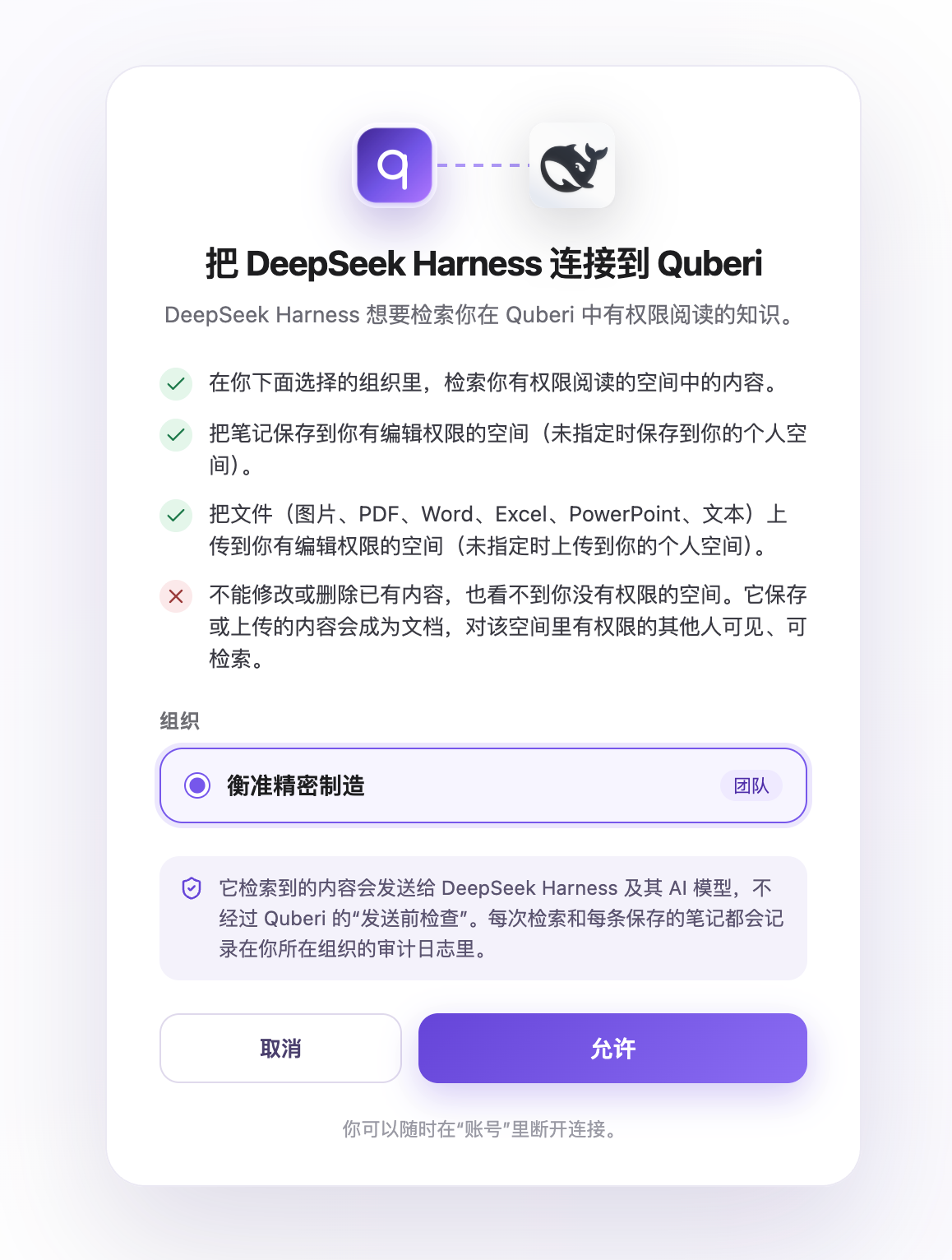
You can also disconnect any time in Quberi under Account → Connected tools.
When sign-in finishes, the browser shows a confirmation page and Harness is brought back to the front (macOS). Nothing needs to be copied or pasted.
On a machine with no screen (a remote shell), the browser is not opened; the plugin gives you the link to open on another device instead.
Before it works
The organization you choose must allow outside tools. It is off by default. An owner or admin turns it on under Admin console → Integrations → Outside tools; owners and admins also get a "Turn on" button on the approval page.
What leaves Quberi
The passages the search returns go to Harness and to whichever AI model Harness uses. Quberi's "check before sending" step does not apply to this path. Every search is recorded in the organization's audit log (the tool's name and the documents returned, never the question or the text).
Saving notes
quberi_save takes a title, the note text (Markdown) and, optionally, the name
of a space. With no space it saves into your personal space. The tool asks
the model to offer to save and wait for you to agree, not to save silently, but
that is an instruction to the model, not a guarantee: you decide by what you
approve and by watching what the model does.
Here the person asked Harness to save the conversation to their personal space. The model
calls quberi_save, then says where the note went and when it becomes searchable:
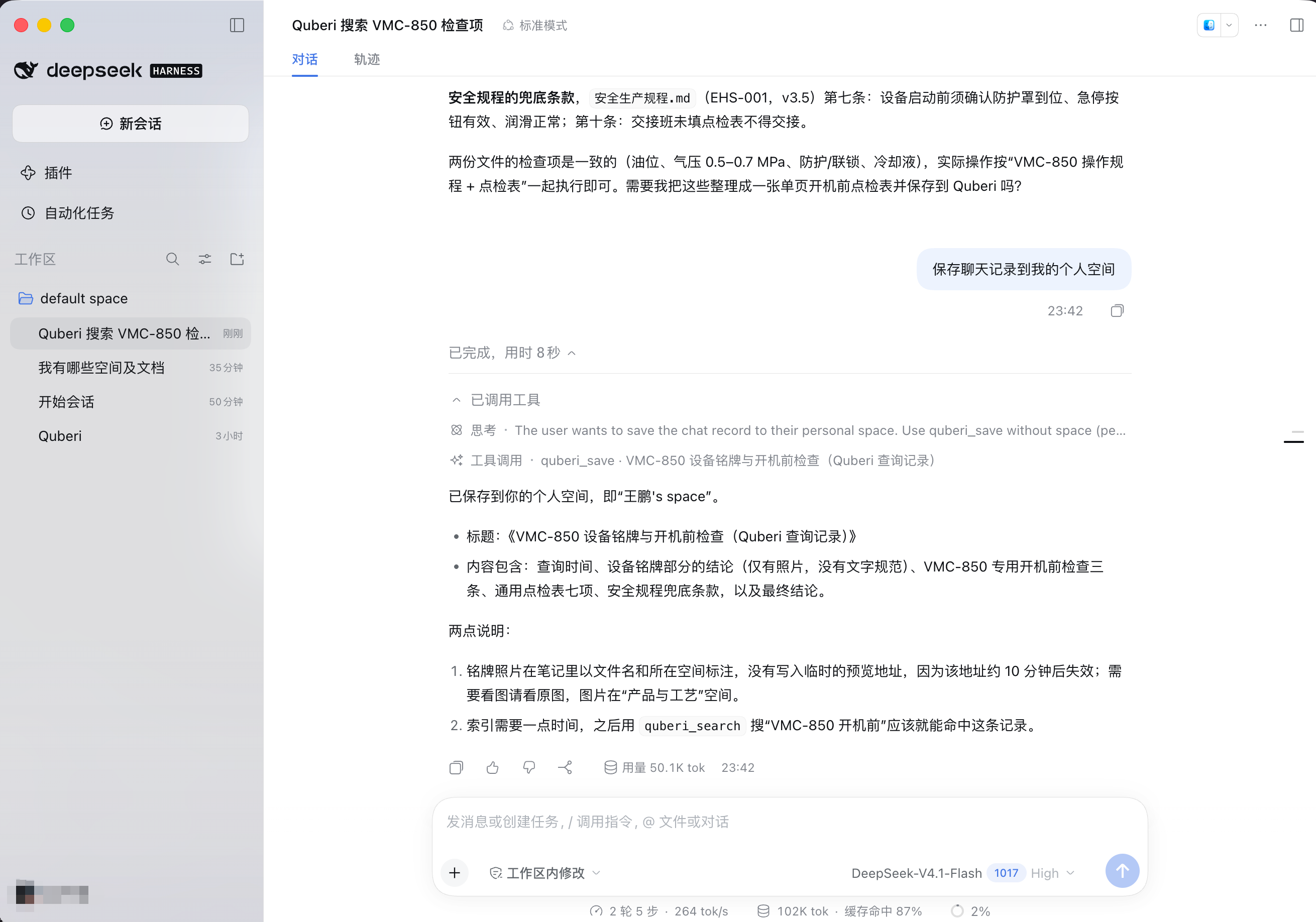
A saved note becomes a document in that space. Anyone who can read that space can find it, so name a shared space only on purpose. Saving is recorded in the audit log (the tool's name and the new document, not the text).
Where a search looks
A text search cannot see pictures, so by default quberi_search looks in both: it
returns the matching passages and, beside them, a few pictures that might be what
you asked for (for example, asking about "动物母狮" shows the lioness picture even though
no document mentions it). The pictures are offered as possible matches, never as the answer,
and only ones scoring above a floor are included. Without this, asking for a picture by
its subject would have said "nothing found".
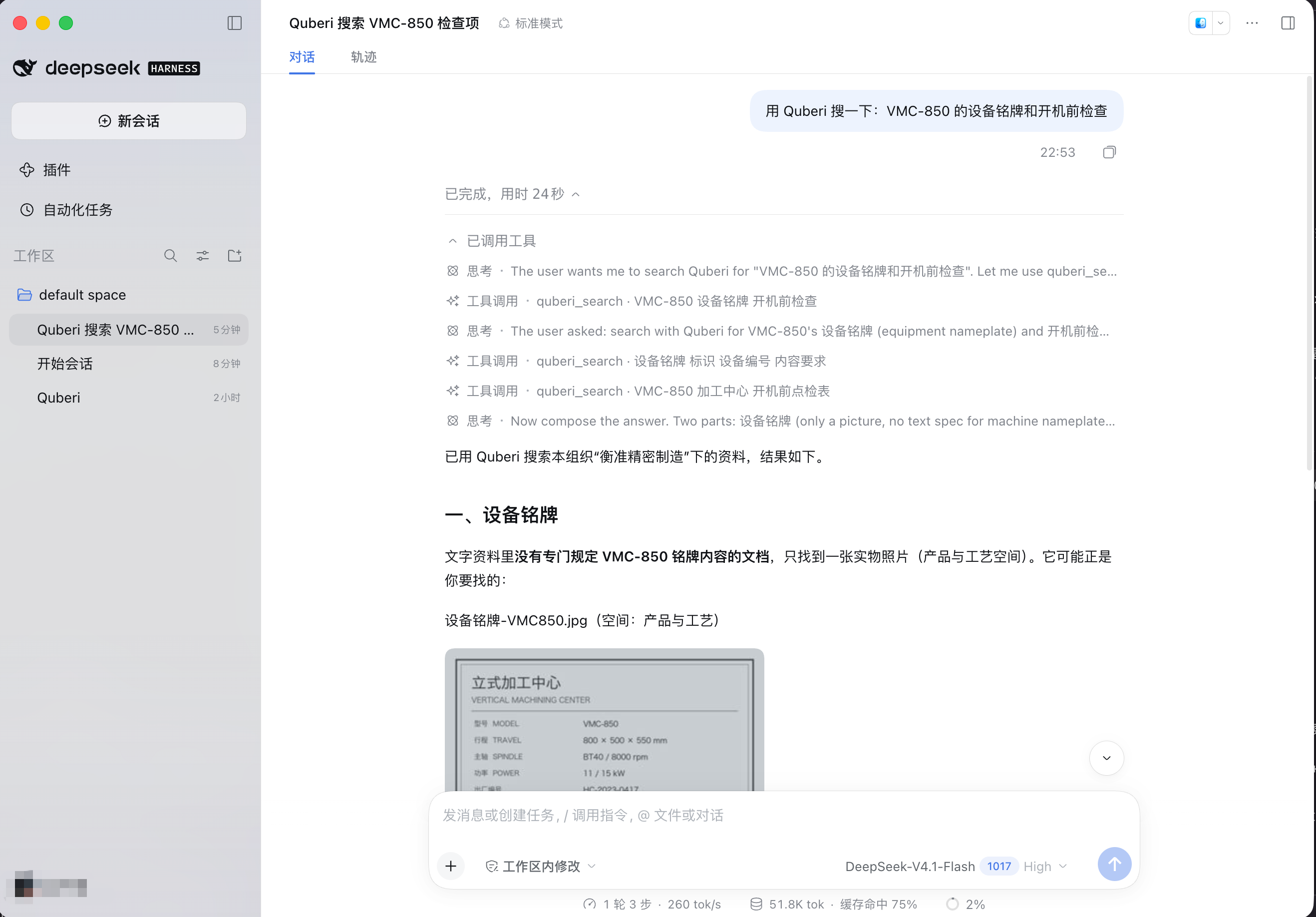
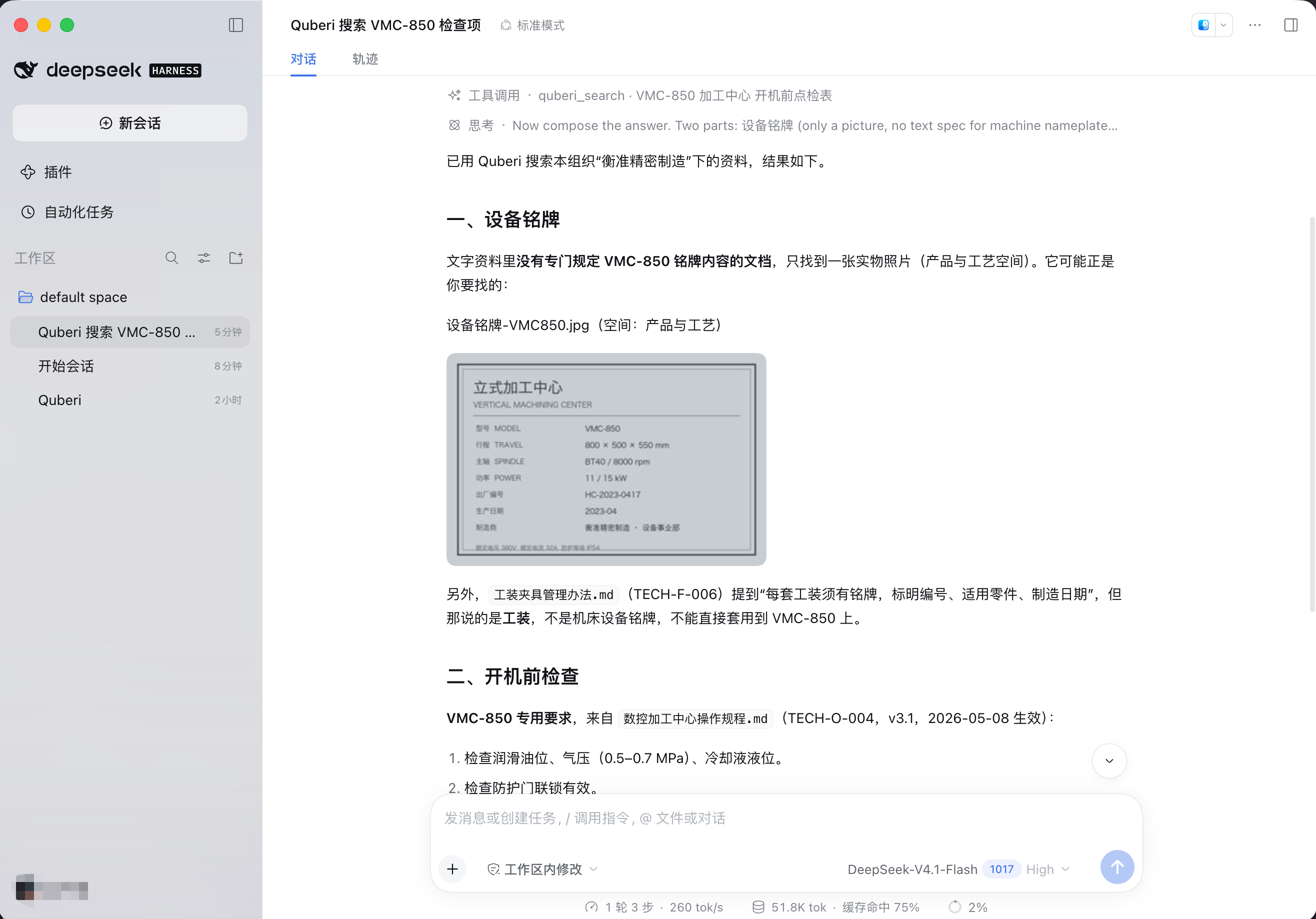
In this example the question is "VMC-850 的设备铭牌和开机前检查" (the nameplate of a machine and its pre-start checks). The model searches, then answers from the operating procedure and shows the nameplate picture it found next to the text. The text documents say nothing about the nameplate itself; the picture does.
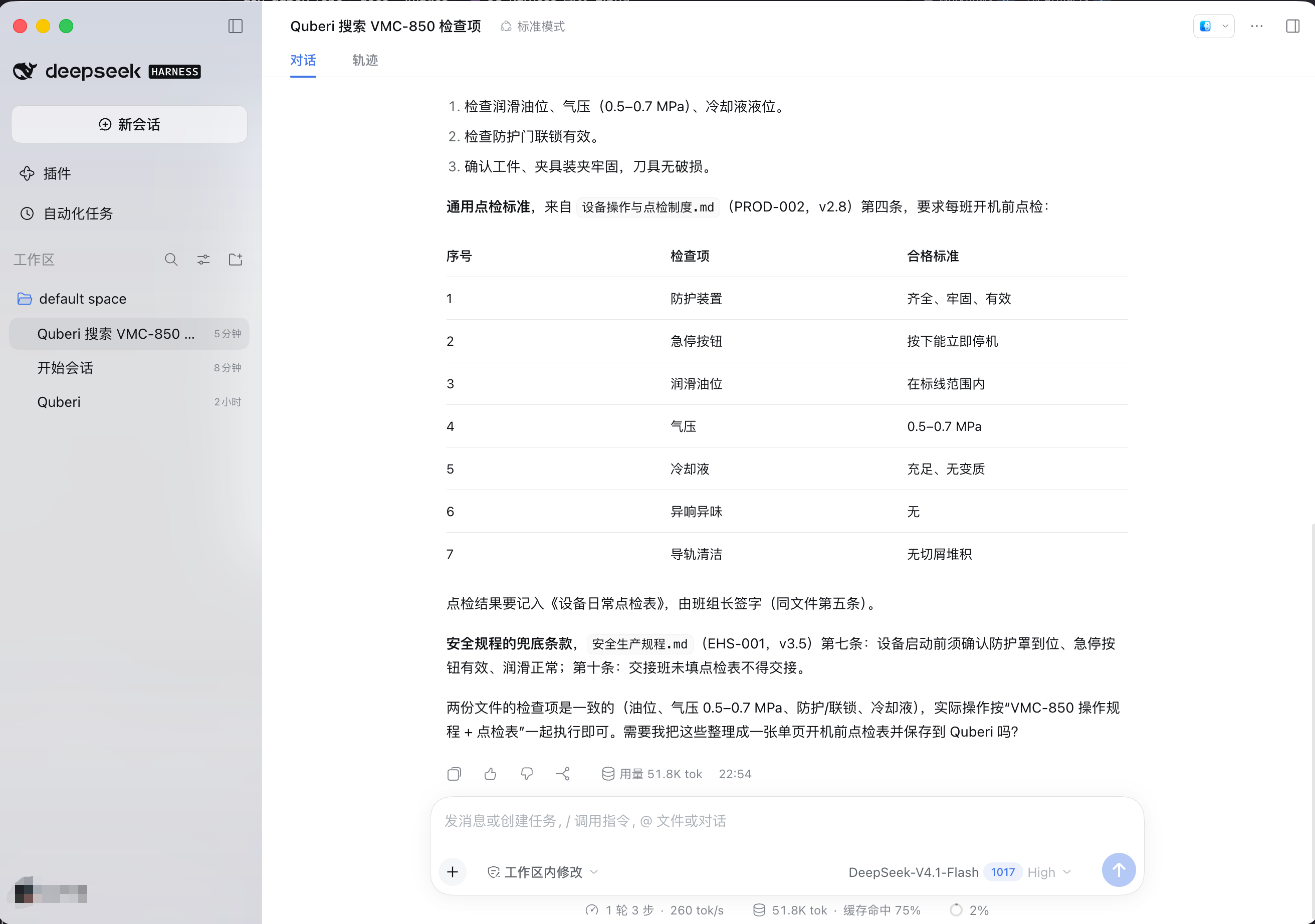
Say "only the documents" or "only pictures" and the model sets
kindtotextorimage./quberi mode textor/quberi mode imagefixes it for you, and overrides the model;/quberi mode bothgoes back to the default. Intextmode the picture tool refuses. The choice lasts until Harness restarts; set the default withsearchMode(below).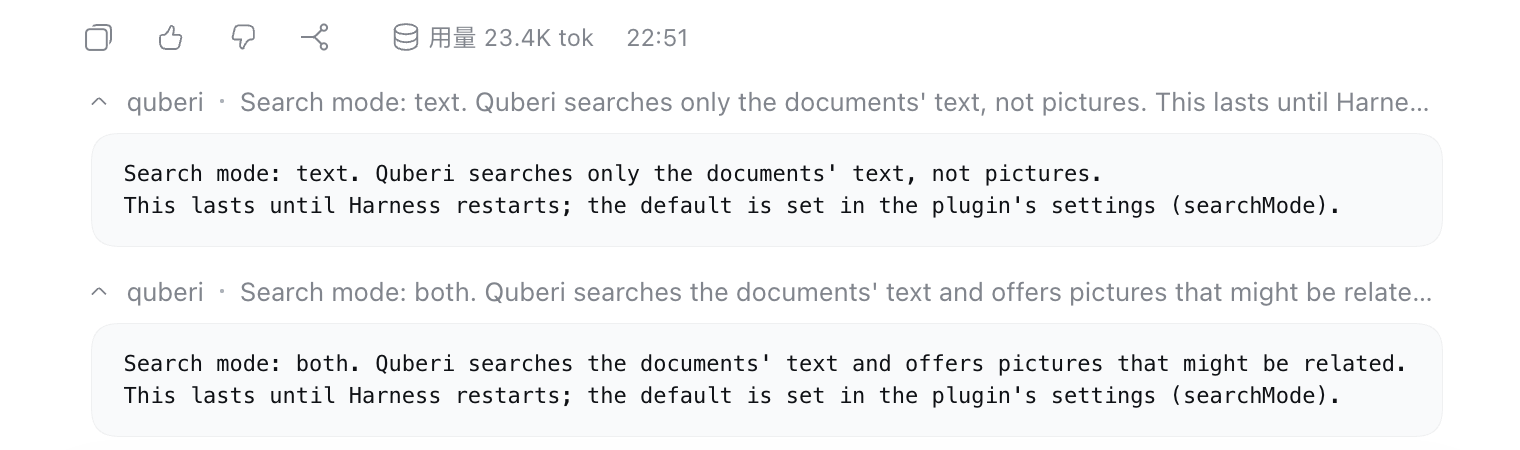
bothneeds a Quberi server that supports it. An older server only searches text, and the plugin simply gets no pictures.Looking for pictures runs Quberi's picture model, so it has its own rate limit. If that is reached, or picture search is off, the text results still come back.
Finding pictures
quberi_search_images finds pictures from a description ("a red bracket with two
holes") in the spaces you can read, closest first, optionally in one named space.
Harness cannot show a picture a tool returns, but it does show a Markdown image
in the model's reply, so each result carries a link to a small preview (a JPEG of
at most 320 px) and the model is asked to paste it into its answer exactly as
given. Three things follow from that:
- The link is short-lived (about ten minutes) and names one picture for you. It works without a sign-in header, so anyone who has the link can open that one small preview until it expires. It stops working at once if you revoke this tool in Quberi, lose access to the space, or the picture is deleted or archived.
- The model has to copy the link without changing it. That is a request, not a guarantee: a model can drop or alter it, and then no preview appears. Ask again.
- The plugin only passes on links that point at your Quberi address, so a reply cannot send the chat window to some other site. The search runs the same space isolation as text search, and each use is recorded in the audit log (the pictures returned, never your description). It needs a Quberi server with picture search; an older one says so.
Browsing
quberi_list_spaces lists the spaces you can read: your personal space and the
team spaces, how many documents each holds, and whether you can edit it (so
whether saving or uploading there would work). quberi_list_documents lists the
documents in one space you name, newest first: name, type, size, last update and
whether it is searchable yet. It returns up to 50 at a time and hands the model a
cursor for the next page. Pass type (image, pdf, word, spreadsheet,
presentation, text or other) to list only that kind of file; this needs a
Quberi server that supports it (an older one ignores the filter).
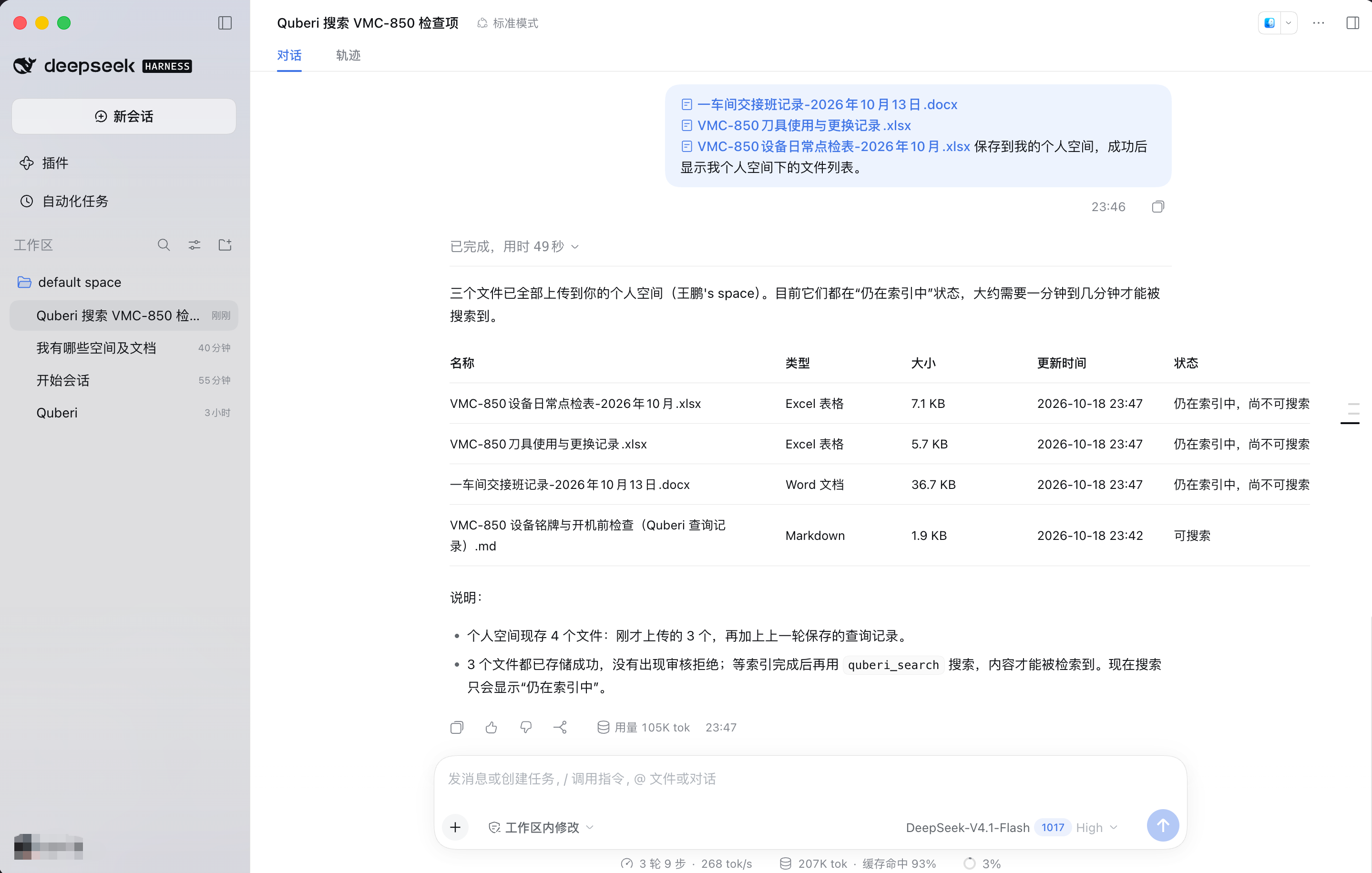
Asked "which spaces and documents do I have?", the model lists the spaces first and then each space's documents. Pictures are marked as searchable by picture, text files by content.
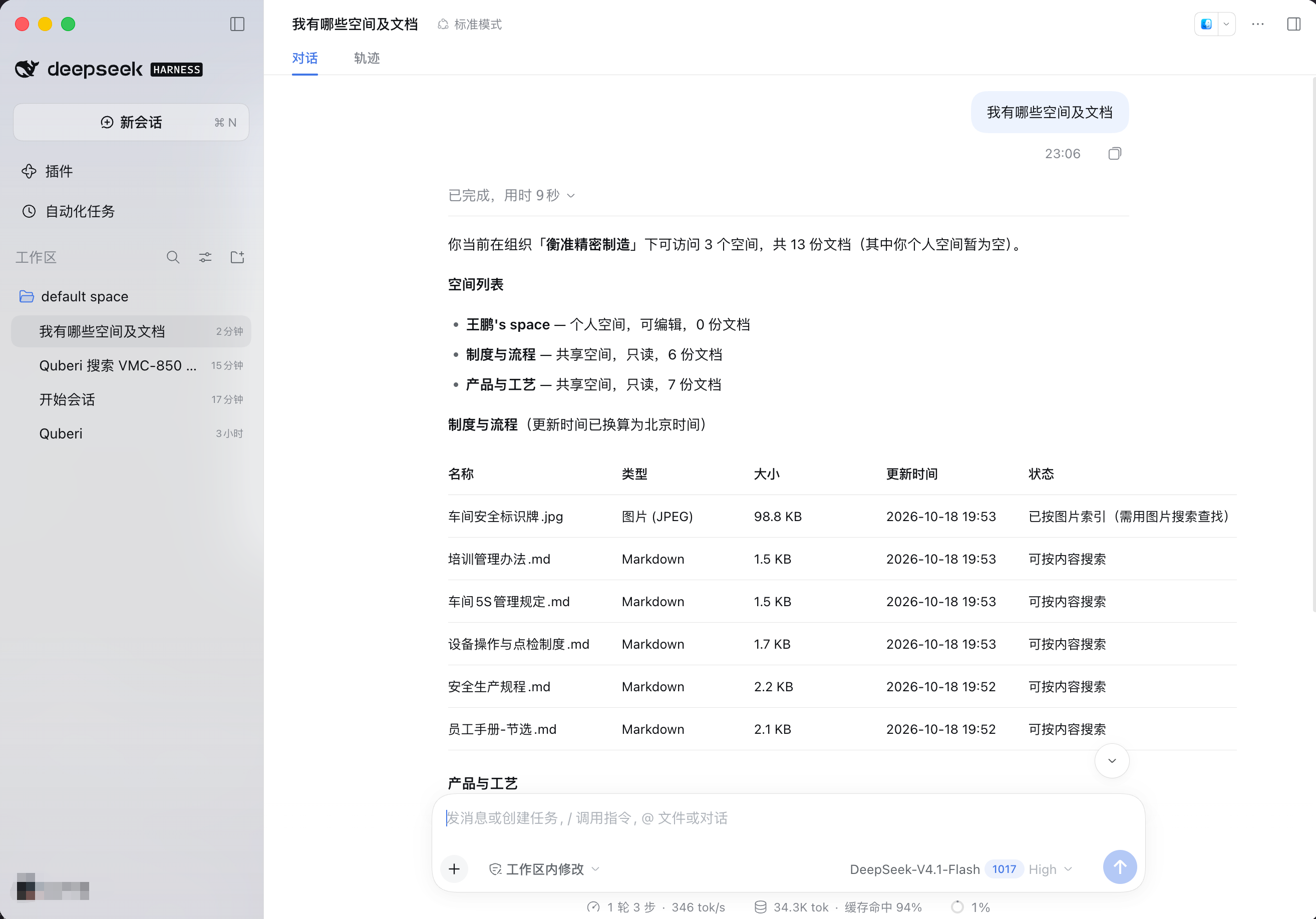
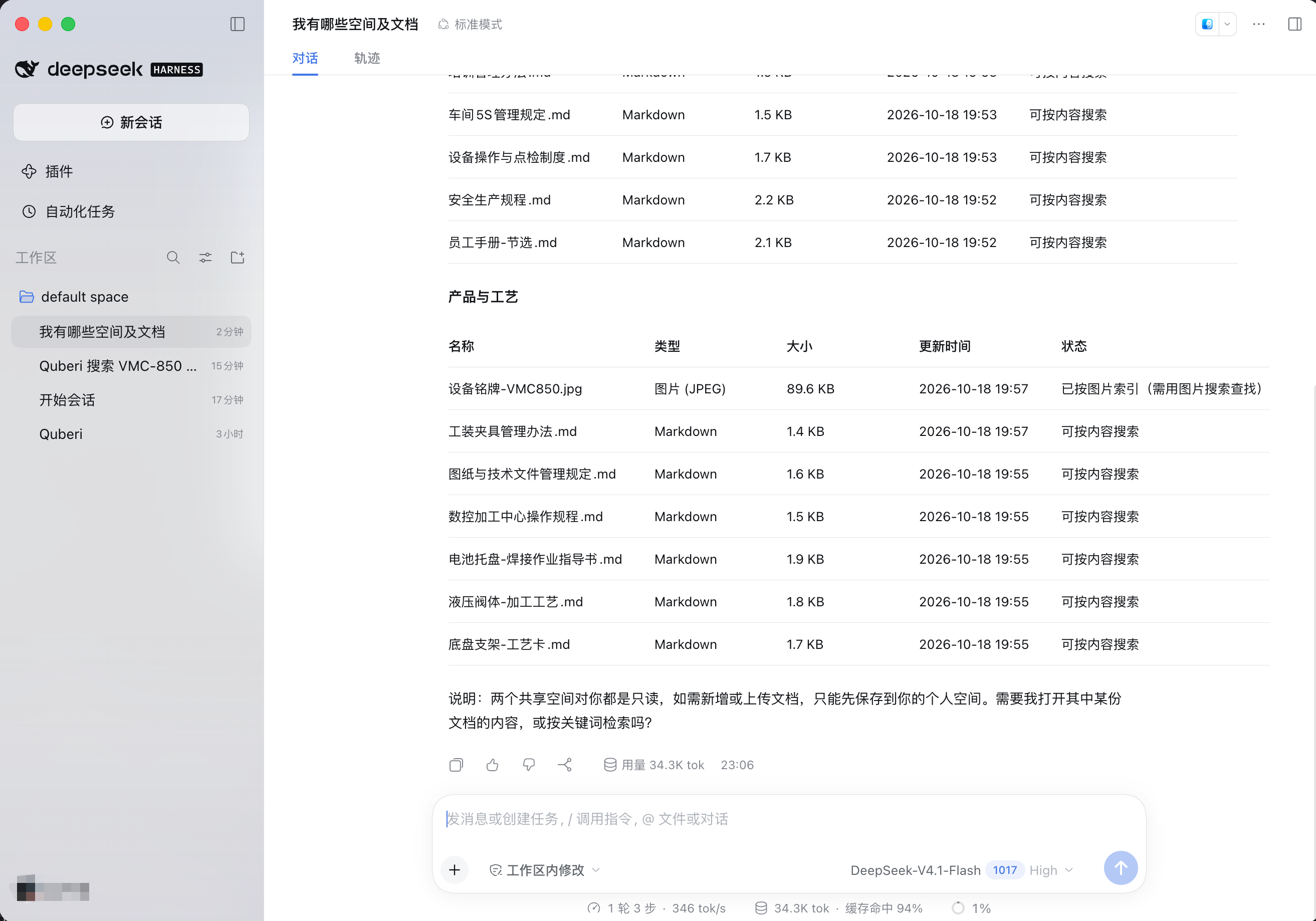
Both listing tools show file information only. They never return what is inside a document (that is what search is for) and they do not say who uploaded it. They use the same read permission as search and the same live access rules, so a space or document you cannot see in Quberi is not listed. Each use is recorded in the audit log (which kind of listing and how many items, never the names).
How it shows up in Harness
Harness lists a plugin's tool calls as plain rows ("Tool call · quberi_search" plus a summary of the arguments) and does not display custom cards from plugins. What you read is the model's own answer. The tools therefore return plain text, and ask the model to answer in your language, to show spaces as a list and documents as a table, to name the document each point comes from, and not to wrap any of it in a code block. That is a request to the model, not a guarantee, so the layout can vary between models. The upload approval prompt is different: Harness itself shows it, with the file, its size and the destination.
Uploading files
quberi_upload_file sends one file from your current workspace to your personal
space, or to a named space you can edit. It exists so Harness can keep a PDF,
a Word or Excel file, a slide deck, an image or a text file you point to,
without you opening the Quberi web app.
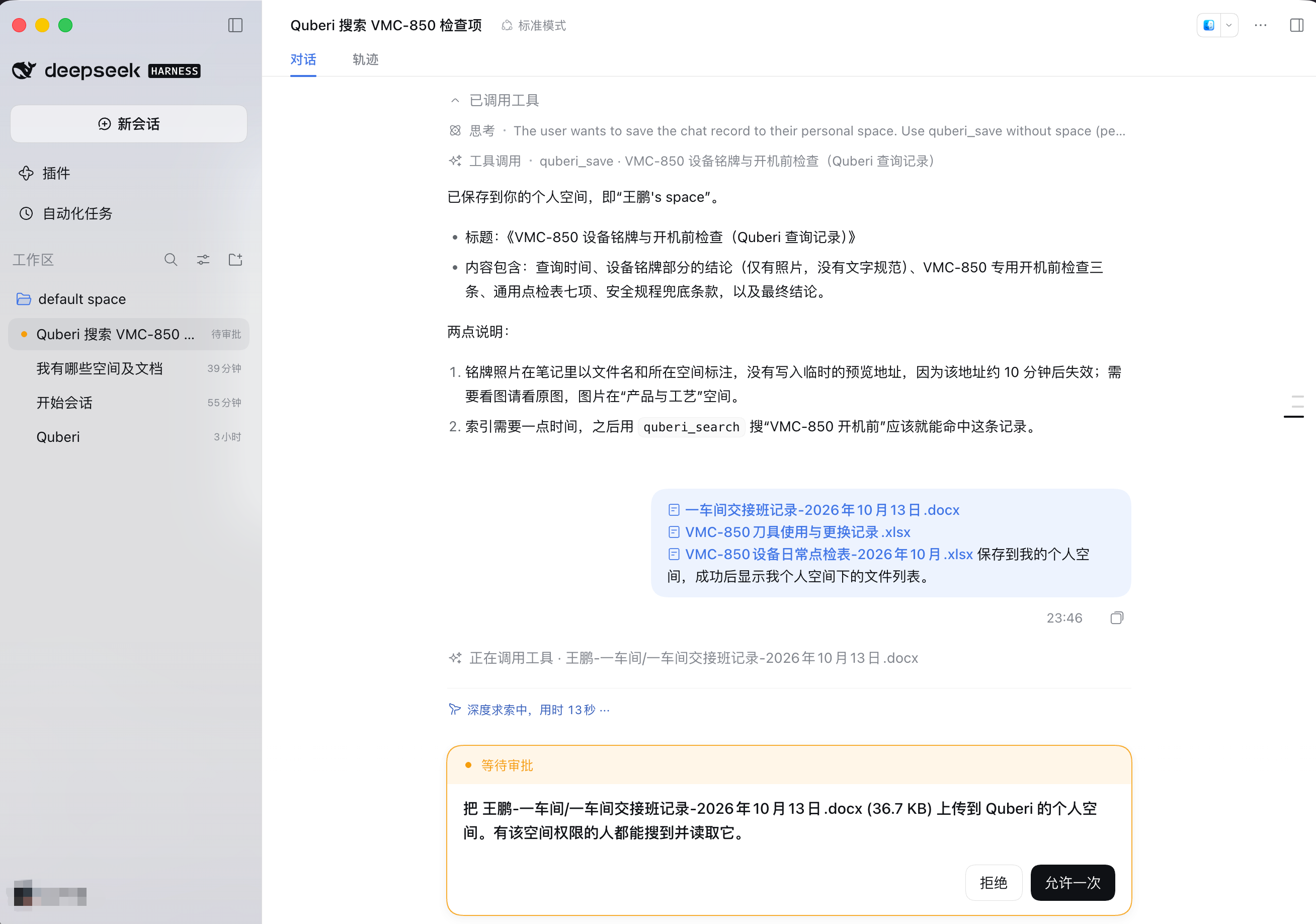
Harness asks before each file leaves the workspace, showing the file, its size and the destination:
Afterwards the model lists what is in the space. Files that are still being indexed are marked as not yet searchable; the saved note is already searchable:
Because a model chooses the path, and a model can be steered by whatever text it read last, three separate checks stand between a path and the network:
- You approve every file. Harness shows the exact file, its size, a short hash and the destination space, and the upload runs only if you allow it. The approval covers that one file once; there is no "always allow". With no approval prompt available (a headless run), or in the "full access, never ask" mode, the upload is refused rather than sent.
- Workspace only. The path must stay inside the workspace folder after links
are resolved. Folders such as
.git,.sshand.aws, and names that look like secrets (.env*,secrets.json,credentials.txt,id_rsa*), are refused outright. This filter is best effort, not a guarantee, which is why step 1 exists. - The approved file is the file sent. The file is read again when it is sent and must match what you approved; if it changed, nothing is uploaded.
Quberi then checks the file's actual content (not its name or label) and has the
final word: png, jpeg, gif, webp, pdf, docx, xlsx, pptx, md, csv, txt and json
are accepted, up to 25 MB. Archives, HTML, SVG, executables and legacy .doc /
.xls are refused. PDF, Office, Markdown, CSV, text and JSON files are indexed
for search after upload, which is not instant: about a minute for a short note,
several minutes for a large PDF. Until a file is indexed, search cannot find it;
a search tells the model which documents are still being indexed so it can say so
instead of presenting unrelated passages as the answer. A picture is indexed by
what it shows, so quberi_search_images can find it from a description (when
your Quberi server has picture search); quberi_search itself returns text
passages only.
Anyone who can read the destination space can find the file. Uploading is a
separate permission (knowledge:upload), recorded in the audit log as the
document and its size and type, never the contents. To turn the tool off, and
stop asking for the permission at sign-in, set uploadFiles: false (see
Configuration).
What it can and cannot do
- It acts as you: search only reads spaces you can read, and save only writes into spaces you can edit. Both are re-checked on every call. If your access changes, the next call reflects it.
- It can add notes and files, nothing else. It cannot edit or delete anything that is already there.
- Saving (
knowledge:write) and uploading (knowledge:upload) are separate permissions. A sign-in made by an earlier version does not have them and is not upgraded behind your back; run/quberi loginto add them. - Access tokens last one hour and refresh on their own; a sign-in lasts at most 90 days. A refresh token that is used twice is treated as stolen and the whole sign-in is revoked.
- Turning outside tools off for the organization, or disconnecting in Quberi, stops the very next search or save.
Configuration
Defaults are right for the hosted service. For a self-hosted Quberi, point
baseUrl at your API (https, or http://127.0.0.1:<port> for development).
openBrowser, autoLogin and focusApp (all on by default) switch off the
automatic browser, sign-in on first use, and returning to Harness. uploadFiles
(on by default) offers the upload tool; off removes it. searchMode (both by default,
or text or image) is where searches look until you change it with /quberi mode:
- insert:
    - id: quberi
      name: dsh-quberi
      config:
        baseUrl: https://api.example.com
        # openBrowser: false
        # autoLogin: false
        # focusApp: false
        # uploadFiles: false
        # searchMode: text
Compatibility
Built and tested against @deepseek-ai/* 0.2.0-rc.2. Harness is a developer
preview and its plugin interfaces can change. The token set is stored with the
credential-record API (credentials.modifyRecord) so two Harness processes
cannot overwrite each other's rotated refresh token.
License
MIT. See LICENSE.