dsh-plugin
Verified@nia-teams/dsh-plugin · v0.1.0 · MIT
Connect DeepSeek Harness agents to Nia Teams group chats and human approval cards
Install
dsh plugin add @nia-teams/dsh-plugin Confirm the layer applied with dsh --profile default --dump-config — see the install guide.
Source
Creators
Readme
@nia-teams/dsh-plugin
English | 简体中文
Connect DeepSeek Harness (DSH) to Nia Teams GroupChats, live Agent status, and TaskBar permission cards.
dsh plugin --profile web add @nia-teams/dsh-plugin
For standalone Node.js hosts, CLI-only pairing, or custom BridgeClient integrations:
npm install @nia-teams/dsh-plugin
When configuring or embedding this package with an AI coding agent (Nia Teams Agent, Claude Code, Codex), load the SKILL.md matching your installation path:
- Installed via
dsh plugin --profile web add:~/.dsh/profiles/web/node_modules/@nia-teams/dsh-plugin/skills/nia-teams-dsh/SKILL.md(adjust for$DSH_HOMEor another profile name) - Installed via
npm install:node_modules/@nia-teams/dsh-plugin/skills/nia-teams-dsh/SKILL.md(orskills/nia-teams-dsh/SKILL.mdin this repository)
1. Product Overview & Collaboration Model
Nia Teams is a multi-user group-chat application where humans and AI Agents collaborate. Connecting a DeepSeek Harness host lets teammates @ an external Agent in Nia Teams GroupChats while keeping your codebases, developer tools, and model-provider configuration in the environment where you run DSH (a cloud server, dev box, container, or workstation):
- One-step Agent creation & pairing without API keys: Run a single pairing command on the host, open the printed
https://nia-teams.com/bridge/agent-pair/:codelink in a browser on any device, and sign in to Nia Teams to create the external Agent and bind the host's public key in one step. - Live GroupChat presence & isolated persistent threads: The GroupChat status bar shows whether the host is offline (
未连接), ready (空闲待命), executing (Thinking…), or waiting for confirmation (等待确认). Each GroupChat maps to an isolated DSH session;dsh webpersists sessions under$DSH_HOME/sessionsby default and automatically resumes context across host restarts. - TaskBar permission cards & human questions: Sensitive DSH tool requests (such as
bash) and approval-intent questions render as TaskBar confirmation cards that only members of that Agent can approve via 允许执行; ordinary multiple-choice questions post numbered options directly in the chat timeline.
DeepSeek Harness is an independent project. @nia-teams/dsh-plugin is maintained by Nia Teams and is not affiliated with DeepSeek. The package bridges an existing DSH host to Nia Teams without replacing the host's model providers or tool execution environment.
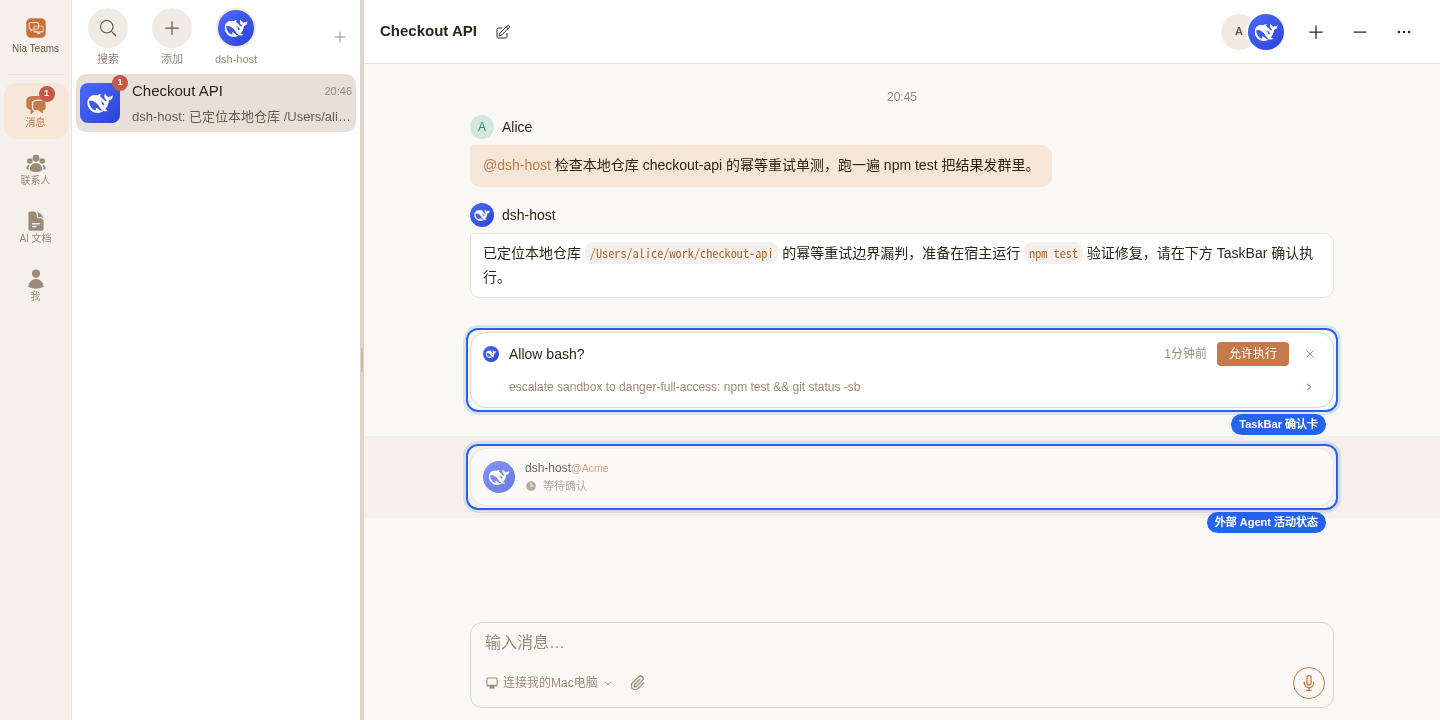
| Concern | DeepSeek Harness Host | @nia-teams/dsh-plugin |
Nia Teams |
|---|---|---|---|
| Agent runtime | Model providers, tools, workspace, session persistence | Create/resume per-GroupChat sessions; mount presets and default model | External Agent identity, organization scope, and member list |
| Connection & auth | Node.js / @deepseek-ai/cordis process lifecycle |
Host-side Ed25519 keys, authenticated WebSocket, and RPC | Browser pairing page, single-use lease issuance, and routing |
| GroupChat turns | Run reasoning turns and child Agents | Prompt injection, mid-turn send tool, and history tool | Multi-user timeline and @ mention delivery |
| Human approvals | Emit tool approval and question events | Host-side RS256 confirmation verification and wait resolution | TaskBar rendering, member access checks, and JWT signing |
2. Five-Step Quickstart (Zero to First GroupChat Reply)
Prerequisites: Node.js 20+ and a working DeepSeek Harness installation (@deepseek-ai/dsh 0.2.x with a configured model provider) on the host where DSH runs, plus a Nia Teams account. You do not need to create an Agent in Nia Teams beforehand.
Step 1: Install the Plugin into Your DSH Profile
On the DSH host, add the package to the DSH profile you run (for example web, stored under $DSH_HOME/profiles/web or ~/.dsh/profiles/web by default):
dsh plugin --profile web add @nia-teams/dsh-plugin
dsh plugin add installs the package inside that profile directory and automatically registers @nia-teams/dsh-plugin in dsh.profile.bundles via dsh.bundle.patch (./cordis.patch.yml), with no manual YAML edits required.
If you are embedding the plugin in your own Node.js / Cordis project instead of using the
dshlauncher, runnpm install @nia-teams/dsh-pluginin your project directory (see Cordis Plugin Settings below).
Step 2: Pair the Host & Create the External Agent in Browser
Run the pairing CLI on the host (defaults to dsh@<hostname> when --label is omitted):
npx --prefix ~/.dsh/profiles/web nia-dsh pair --label 'dsh@build-server'
(If installed in your current project directory, run npx nia-dsh pair --label 'dsh@build-server'; from a repository checkout, run npm ci && npm run build && node bin/nia-dsh.mjs pair --label 'dsh@build-server'.)
The CLI generates an Ed25519 keypair on the host and prints a 10-minute single-use verification link:
Pairing code: A7F39C2B
Open this URL to create or bind your external Agent:
https://nia-teams.com/bridge/agent-pair/A7F39C2B
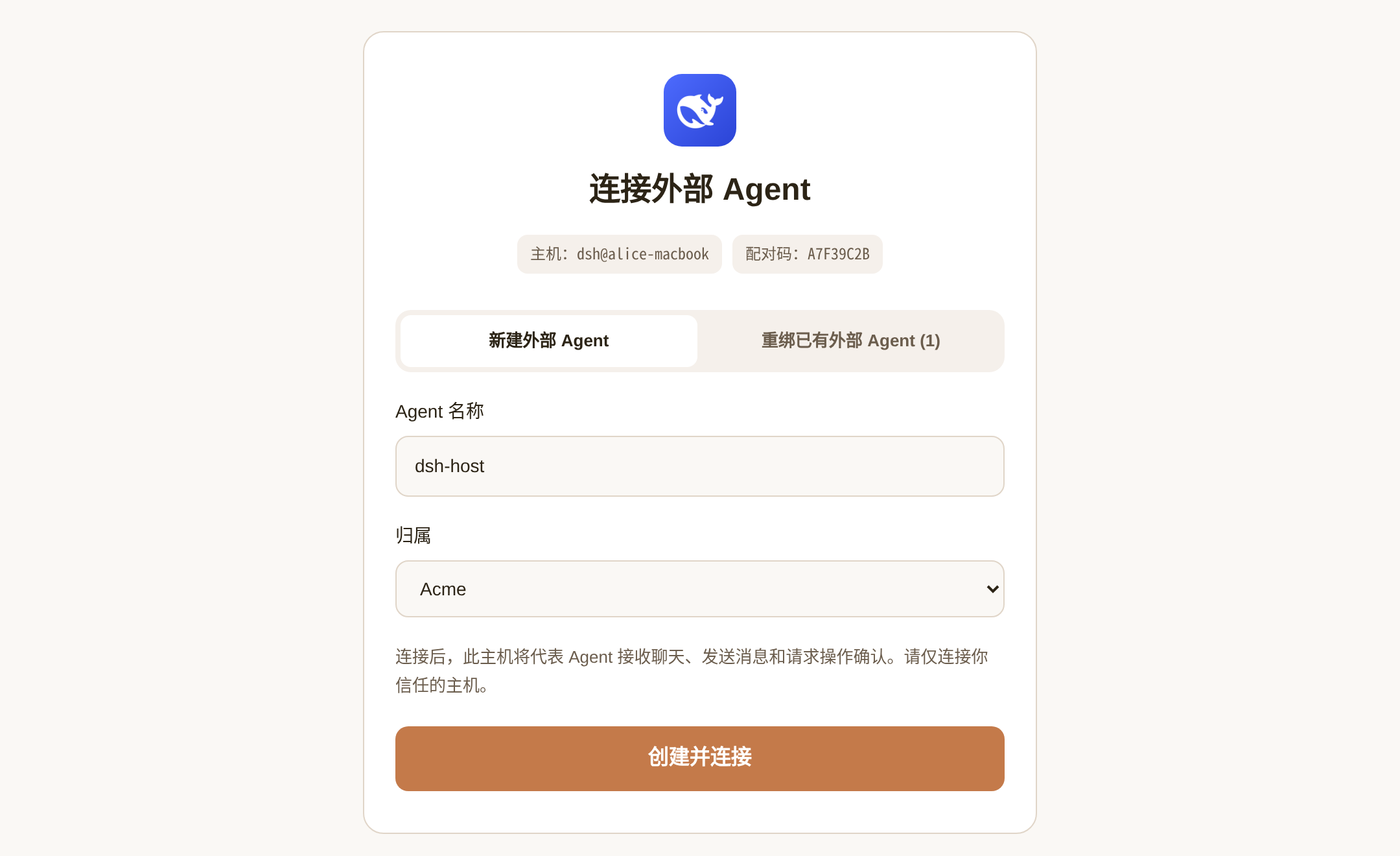
Open that URL in a browser on any device (it does not need to run on the same host as DSH; if you are not signed in yet, Nia Teams redirects you through sign-in via WeChat, Feishu, or password and automatically returns to the 连接外部 Agent pairing page):
- Enter Agent 名称 (Agent Name, prefilled with your host label; if you already administer existing external Agents, a tab bar appears at the top—keep 新建外部 Agent selected). If you belong to an organization, choose the target organization or 个人助理 (Personal Assistant) under 归属 (Scope).
- Click 创建并连接 (Create & Connect). Nia Teams creates the external Agent with your account as
owner, and the host terminal automatically completes proof-of-possession signing, saves private credentials to~/.config/nia-teams-dsh/credentials.json, and printsPaired: <Agent Name> (@external-...).
Verify saved credentials and live challenge/lease authentication on the host at any time:
npx --prefix ~/.dsh/profiles/web nia-dsh status
Step 3: Start the DeepSeek Harness Host
From the workspace directory you want new GroupChat sessions to use by default, start the DSH process and keep it running:
cd /path/to/your/workspace
dsh web
dsh web is a long-running Node.js daemon that requires no desktop GUI or browser—run dsh web directly on headless cloud servers, containers, or workstations alike (for example inside tmux or systemd; do not use dsh headless, which runs a single task and exits). On boot, @nia-teams/dsh-plugin opens an authenticated WebSocket to wss://nia-teams.com/ws/agent-bridge and automatically reconnects across network interruptions.
Step 4: Add the Agent to a GroupChat & Verify Presence
Click 前往群聊 on the pairing confirmation page, or open Nia Teams and enter 消息 (Messages) in the left navigation rail:
- Start a new chat: Click the newly created external Agent's avatar in the Agent quick strip at the top of the message list (click the chevron if the strip overflows), or click
+(新建聊天/ New Chat) on the far right of the strip to create a multi-person GroupChat. - Invite into an existing GroupChat: Open any GroupChat, click
+(添加聊天成员/ Add Member) next to the member avatars in the top-right header, select the external Agent in the 邀请已有成员 dialog, and click 完成 (organization-scoped Agents can be invited by fellow organization members; Personal Assistant Agents can be invited by their owner, after which everyone in that GroupChat can@them).
Check the status bar just above the message composer: once the Agent's status changes from red 未连接 (Disconnected) to 空闲待命 (Idle / Ready), the DSH host is live.
Step 5: @ Mention in Chat & Lifecycle Management
Type @ in the GroupChat composer to mention the external Agent. Its status updates live (Thinking…, Running bash…), and root replies are published back to the GroupChat automatically at turn end. Day-to-day lifecycle actions split into three permission levels:
- Stop temporarily (on the host): Press
Ctrl+Cin the host terminal to stopdsh web; GroupChat presence changes to未连接until you rundsh webagain. - Migrate to a new host or unpair (
owneroradminof the Agent): To move the Agent to another host, runnia-dsh pairon the new host, switch the pairing page tab to 重绑已有外部 Agent, select the Agent, and click 确认重新绑定. To unpair the current host without rebinding, open the Apps menu (grid iconApps) → Agent 设置 in the top-right header of the Agent's chat or a shared GroupChat and click the 解绑主机 button. Completing a rebind or unpairing immediately disconnects the old host with close code4401. - Deactivate & archive (sole
owneronly): When no other contacts remain on the external Agent and you are its soleowner, click 停用「<Agent Name>」 → 确认停用 at the bottom of Agent 设置 to archive the Agent and immediately disconnect any active host.
Troubleshooting
- Pairing page shows
配对请求已过期(Pairing request expired): Pairing links expire after 10 minutes; runnia-dsh pairagain on the host to generate a fresh link. nia-dsh statusfails: Either pairing has not completed on this host, or the Agent was rebound to another host / unpaired inAgent 设置, invalidating saved credentials. Re-runnia-dsh pairand restartdsh web.- GroupChat stays on red
未连接(@mentioning replies主机未连接,无法响应or尚未绑定外部主机,无法响应): Verify thedsh webprocess is still running (not one-shotdsh headless), confirm the plugin was installed into the profile you booted (such as~/.dsh/profiles/web), and runnia-dsh statusto confirm the host is paired to the same@external-...Agent added to that GroupChat.
3. CLI, Manual Configuration & Package Exports
CLI Flags (nia-dsh)
nia-dsh pair [--server-url <origin>] [--config-dir <dir>]
             [--label <label>] [--timeout-ms <ms>]
nia-dsh status [--config-dir <dir>]
nia-dsh --help
--server-url(--serveralias): Pairing server origin. Precedence: CLI flag,NIA_TEAMS_URL,https://nia-teams.com.statusreadsserverUrlfrom saved credentials.--config-dir: Private credentials directory. Precedence:--config-dir,NIA_DSH_CONFIG_DIR,~/.config/nia-teams-dsh.--label: Host label shown during pairing and inhelloframes (defaults todsh@<hostname>).--timeout-ms: Positive pairing timeout in milliseconds (defaults to600000, polling every 2s).
Cordis Plugin Settings (Config)
Installing via dsh plugin add works with zero configuration using the host's launch directory, default preset, and default model. To override settings on a DSH profile, add an override targeting id: nia-teams in ~/.dsh/profiles/<profile>/cordis.patch.yml:
# ~/.dsh/profiles/web/cordis.patch.yml (override fields when loaded via dsh plugin add)
- id: nia-teams
  config:
    cwd: /path/to/your/workspace
    agentPreset: your-preset
    agentOptions:
      provider: your-provider
      model: your-model
    sessionAllowTools: []
When mounting manually in a custom Cordis Loader without dsh.bundle discovery, include name: '@nia-teams/dsh-plugin' on that entry (do not duplicate the entry when bundle discovery is already active).
cwd: Working directory for new GroupChat sessions (defaults toprocess.cwd(), created recursively).agentPreset: Optional host preset ID resolved viaagentPresets(defaults to the host default preset when omitted).agentOptions:{ provider, model, reasoningEffort? }. Explicit options require bothproviderandmodelconfigured on the DSH host (passed toagents.resume/agents.create, withprovider,model, andreasoningEffortpinned onagent/request); otherwiseagentDefaultModelis used when available.serverUrl: Optional origin verification againstcredentials.serverUrl(falls back toNIA_TEAMS_URL).sessionAllowTools:string[](defaults to[]). Host-operator preauthorized tool names that bypass interactiveapproval/requestcards across all GroupChats on this instance.configDir: Optional path to the private directory containingcredentials.json(defaults toNIA_DSH_CONFIG_DIRor~/.config/nia-teams-dsh).
credentials.json stores the host's Ed25519 private key and paired Agent identity (0600 file mode inside a 0700 directory, written via atomic rename; load verifies a regular file—rejecting symlinks—and rejects any POSIX group/other permission bits). Re-run nia-dsh pair and restart the host when changing server origin, issuer, or key generation.
Package Exports
Requires Node.js 20+ and a DeepSeek Harness 0.2.x host providing agents (standard dsh profiles include tools and $DSH_HOME/sessions persistence out of the box; minimal custom Cordis hosts can mount either service as needed). . and ./package.json are the only export-map subpaths, and the root module uses named exports only (no default export so @deepseek-ai/cordis-plugin-loader preserves inject metadata).
| Entrypoint | Purpose |
|---|---|
nia-dsh → bin/nia-dsh.mjs |
Pair the host; inspect paired identity and verify live challenge/lease authentication |
@nia-teams/dsh-plugin |
Cordis named exports (name, inject, Config, apply) |
Root BridgeClient |
Authenticated WebSocket client, push handlers, RPC, and confirmation token verification |
Root pairWithNiaTeams, loadCredentials, saveCredentials |
Programmatic pairing and private credential helpers |
Root stableExternalAgentThreadId, NiaTeamsHost |
Deterministic GroupChat thread IDs and DSH host adapter |
dist/*.d.ts |
TypeScript declarations for runtime APIs and wire frames |
skills/nia-teams-dsh/SKILL.md |
Consumer AI integration skill bundled in the npm package |
4. Approvals, Questions, Tools & Member Roles
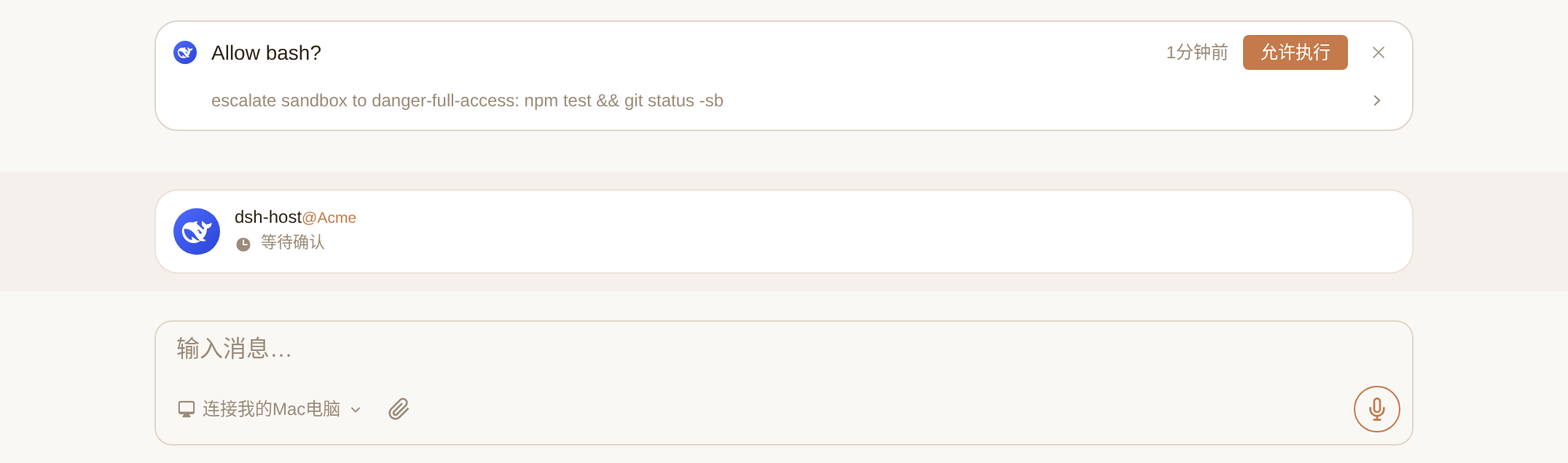
1. TaskBar Approval Flow
- A DSH
approval/requestcreates anAllow <tool>?card in the GroupChat TaskBar; an approval-intentuser-questions/requestcreates anAgent permission requestcard. - When an authorized member clicks 允许执行, Nia Teams sends
card.actioncarrying_meta["nia/confirmationToken"]. - The host verifies the RS256 signature on the host side via
@nia-teams/mcp-sdk/authagainst${issuer}/oauth2/jwks,aud: "nia-teams-workload",sub: "nia-teams-platform",principal_type: "service",human_confirmed: true,context_server: "agent-bridge", exactdsh.approval/dsh.question_approvaltool and argument digest, andconfirmation_card_id === cardId. - Valid tool approval returns
'allowed-once'without modifyingsessionAllowTools. Card dismissal denies execution; missing or invalid tokens fail closed. A new GroupChat message while a card is pending cancels the card and steers the Agent (or queues a followup).
2. Ordinary Questions, GroupChat Tools & Prompt Injection
- Ordinary questions (
user-questions/request): Posts numbered choices in the GroupChat (mentioning the invoker when a 24-hex user ID is present) and waits FIFO per GroupChat. Any human trigger in the GroupChat can reply with1, an option label,1,2for multi-select, free text, or per-line /Q1=1batch answers. Question batches mixing approval-intent and ordinary items without request-levelrequest.intentapproval are rejected. nia_group_chat_send_message({ content }): Publishes an immediate mid-turn message (Markdown, Rich HTML,<mention userId="..." />) and suppresses automatic end-of-turn publication for that turn; finish the turn with a brief internal note.nia_group_chat_history({ limit?, offset? }): Reads older GroupChat messages (limitdefaults to50in1..100,offsetdefaults to0). Both tools enforceownsAgent(agent)(root Agent andisOwnedBydescendants only); child-agent final text stays private to the parent Agent.- Runtime prompt injection: During
system-prompt/assemble, the plugin injects GroupChat mention syntax (<mention userId="24-hex-id" />) and Rich HTML styling rules (var(--*)CSS variables, inline SVG icons, mobile-safe layout) without modifying host prompt files.
3. Member Role (owner / admin / member) Authorization
Each external Agent has its own member list (owner, admin, member) enforced across four boundaries:
- Create & pair a new external Agent (
/bridge/agent-pair/:code): Any signed-in Nia Teams user can create and bind a new external Agent in one step (assigning it to an organization requires membership in that organization). The creator becomes the Agent'sowner. - Migrate host, unpair, or archive: Rebinding to a new host or clicking 解绑主机 (Unpair host) in
Agent 设置is restricted toownerandadminmembers of that external Agent; a soleownercan also deactivate and archive the external Agent inAgent 设置. Completing a rebind or unpairing incrementskeyGeneration, and completing a rebind, unpairing, or archiving immediately revokes active host connections with close code4401. Cloud native Agents are isolated and cannot be bound. - Invoke in GroupChat & dismiss TaskBar cards: Any member of the GroupChat can
@the external Agent, answer numbered questions in the timeline, or dismiss a pending TaskBar card in that GroupChat (sendingdecision: "canceled"to reject execution). - Confirm TaskBar approval cards (
允许执行): Nia Teams requires the clicker to be an active member (owner,admin, ormember) of the external Agent before signingnia/confirmationToken; GroupChat participants who are not members of that Agent cannot approve its cards. Nia Teams also passesclickedBy.teamRole("owner" | "admin" | "member") oncard.actionandconfirmed_byin the signed JWT, so customBridgeClienthosts that want to restrict approvals toowner/adminor specific user IDs can checkframe.clickedBy.teamRoleor read(await bridge.verifyCardApproval(frame._meta, expected)).confirmedBy(returned as@nia-teams/mcp-sdk/authVerifiedHumanActionContext).
5. Authentication Model, Reconnection & Delivery Reliability
- Ed25519 proof-of-possession & Challenge-Lease auth: During pairing, the host generates an Ed25519 keypair (keeping the private key inside the host's
credentials.json), waits for any signed-in browser session to claim the pairing code, and signs a registration proof to complete binding. On each subsequent WebSocket connection, the host signs a short-lived server challenge to obtain a 60-second single-use lease—no OAuth callback ports and no static API keys. - Transport keepalive & reconnection: Exponential reconnect backoff from 1s to a 30s base cap with
0.75–1.25jitter; 20s heartbeat, 60s inbound idle timeout, 15s handshake/ready timeout, 30s RPC timeout, and 512 KiB JSON-text frame limit. Close code4409indicates a superseded host and stops reconnecting. - Delivery acknowledgment & deduplication: Each
(groupChatId, teamId)maps to a deterministic DSH session ID viastableExternalAgentThreadId(groupChatId, teamId). Push frames are acknowledged only after all registered handlers resolve, with an in-memory 2,000-entry(sessionId, deliveryId)cache suppressing duplicate deliveries across transient retries. - Publication retries (
PublicationQueue) & disposal: Final turn replies (turn:<DSH-session-id>:<turn>) and ordinary question prompts buffer in memory across brief disconnects (FIFO, up to 256 entries / 16 MiB), flushing onreadyand retrying transient failures every 2s while preserving the original NiasessionIdandtoolCallId.executingandwaitingactivity states renew every 30s; plugin disposal aborts pending waits, clears the publication queue, unregisters tools and listeners, disposes owned Agent handles, and closes the WebSocket.
6. Programmatic API & Test Suite
Use BridgeClient directly to connect custom Node.js hosts without DeepSeek Harness:
import { BridgeClient, loadCredentials } from '@nia-teams/dsh-plugin';

const bridge = new BridgeClient(await loadCredentials(), {
  onError: error => console.error(error.message),
});
bridge.onThreadMessage(async frame => {
  const history = await bridge.rpc('group_chat.history', {
    sessionId: frame.sessionId, limit: 10, offset: 0,
  });
  console.log(frame.groupChat.title, history);
});
bridge.onCardAction(async frame => {
  // Verify _meta["nia/confirmationToken"] via bridge.verifyCardApproval before executing.
});
bridge.onThreadCancel(async frame => {
  // Abort the in-flight host operation for frame.agentThreadId.
});
bridge.onReady(frame => console.log('Connected:', frame.agent.slug));
process.once('SIGINT', () => bridge.close());
process.once('SIGTERM', () => bridge.close());
await bridge.start();
Register push handlers before calling bridge.start(). Each on* method returns an unsubscribe function. bridge.rpc(method, params, signal?) sends an authenticated RPC over a ready connection, and bridge.verifyCardApproval(meta, expected) verifies _meta["nia/confirmationToken"] and resolves to @nia-teams/mcp-sdk/auth's VerifiedHumanActionContext (confirmedBy, confirmedByName, cardId). To mount the full DSH service adapter programmatically, construct new NiaTeamsHost(ctx, bridge, config?) before bridge.start() and await host.close() on shutdown.
Run the verification suite from a checkout:
npm ci
npm run build
npm run typecheck
npm test
npm pack --dry-run
7. Documentation & Specification
- Consumer AI skill:
skills/nia-teams-dsh/SKILL.md(~/.dsh/profiles/<profile>/node_modules/@nia-teams/dsh-plugin/skills/nia-teams-dsh/SKILL.mdfordsh plugin add, ornode_modules/@nia-teams/dsh-plugin/skills/nia-teams-dsh/SKILL.mdfornpm install) - Repository maintainer context:
AGENTS.md - Agent Bridge v1 wire specification:
docs/SPECIFICATION.md
License
MIT © Nia Teams