dsh-threads
Verified@rs-dsh/dsh-threads · v0.4.1 · MIT · Web UI
Comment on any passage of a DSH Web conversation and get a brief reply from the session's own model in a small thread next to it, without touching the main chat.
Install
dsh plugin add @rs-dsh/dsh-threads Confirm the layer applied with dsh --profile default --dump-config — see the install guide.
Source
Published to npm without a public repository. Inspect the package contents before installing.
Tags
Readme
@rs-dsh/dsh-threads
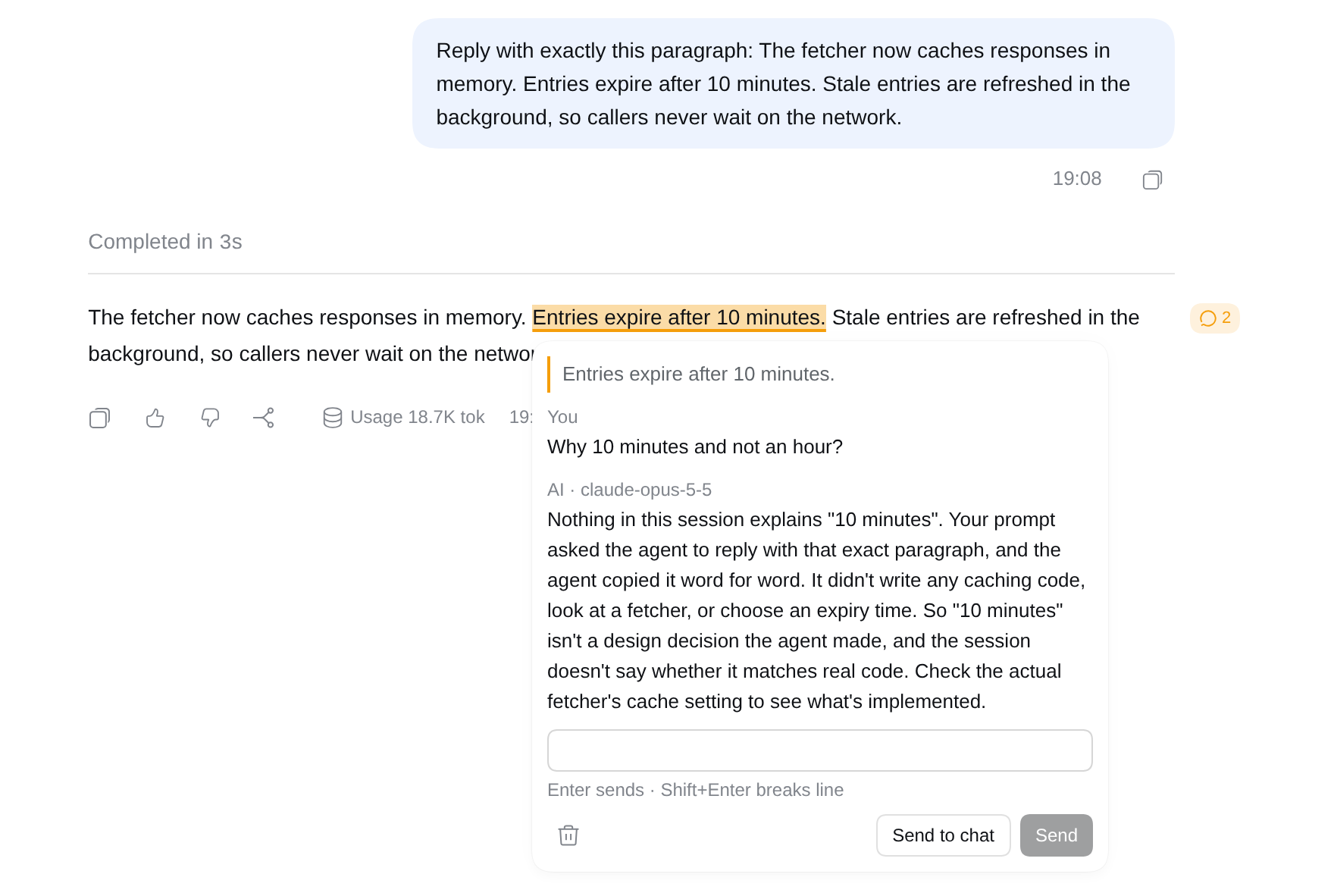
Comment on any passage of a DeepSeek Harness conversation. The passage stays highlighted, and the session's own model replies briefly in a small thread next to it, without touching the main chat.
Formerly
@rs-dsh/dsh-comment. If you installed@rs-dsh/dsh-comment, remove it and add this package instead. Threads you saved with it keep showing.
Install
dsh plugin --profile <name> add @rs-dsh/[email protected]
Then reload the DSH web page.
To install from this repository instead, pinned to the release tag:
dsh plugin --profile <name> add 'github:romany-saad/dsh-plugins#[email protected]&path:packages/dsh-threads'
The package adds itself, and the shared rs-dsh core it is drawn with, to the profile. Do not also add dsh-threads or dsh-core to the profile's own cordis.patch.yml.
Requirements
- DSH 0.2.1-rc.2 or later. It is tested with 0.2.1-rc.2.
- A profile with the web GUI (
@deepseek-ai/dsh-web-app), such asweb. The plugin works in the web GUI only. - A browser with the CSS Custom Highlight API: current Chrome, Edge, Safari or Firefox.
Use
Comment on a passage
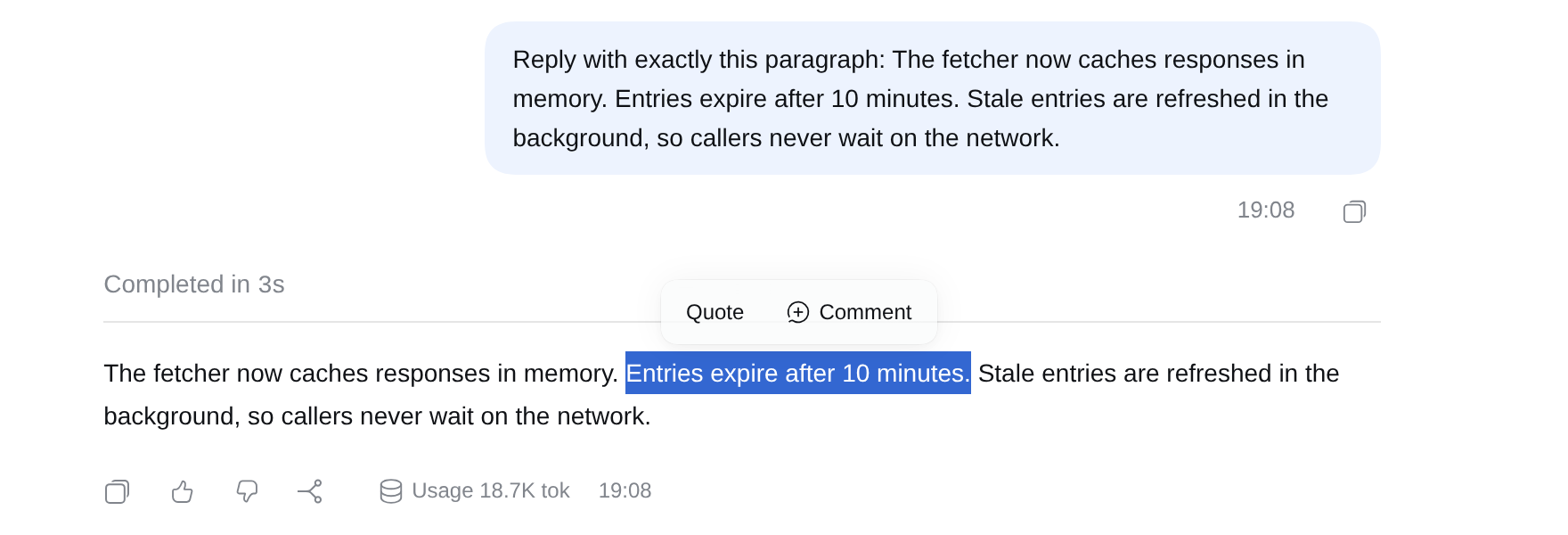
Select text in a reply, in your own message, or in an expanded reasoning block, and press Comment.
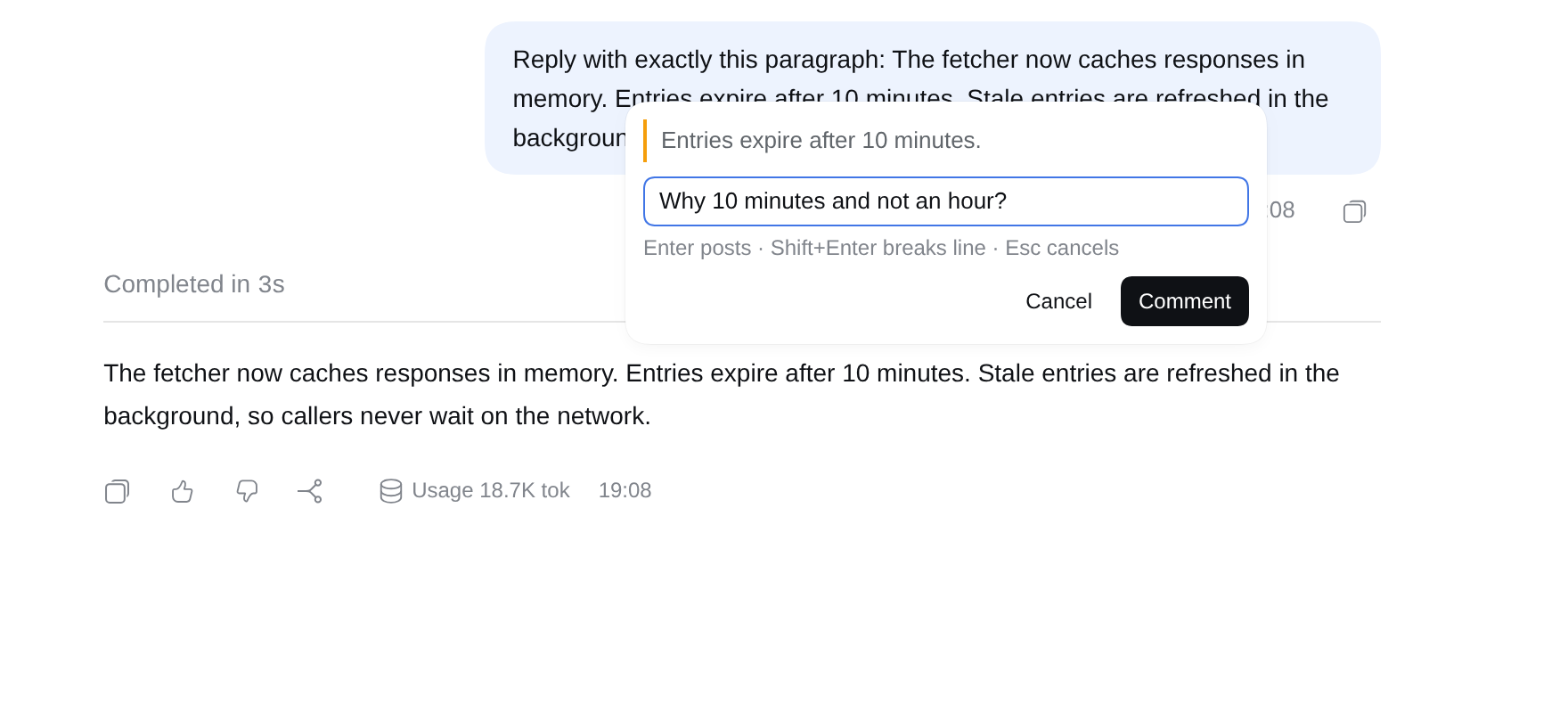
Type your comment and press Enter. Shift+Enter starts a new line, and Esc cancels.
The reply
The thread opens next to the passage and shows Thinking… until the reply arrives, usually within a few seconds. The reply comes from the model and effort the session uses now. It starts from the passage, the message it is in and that turn's prompt, and reads more of the session when your question needs it.
The replier only reads. When your question needs more than the conversation, it can:
- read the session: other turns, tool calls and their results;
- read files in the session's working directory: open a file, list a folder, find files by name, and search their contents. It sees the files as they are now, which may differ from what the agent saw then;
- search and fetch the web, if you turn it on (see Configure).
It cannot change files, run commands or act in the session, and the agent in the main chat does not see the thread. To have the agent act on it, use Send to chat (below).
Each thread is its own small conversation: type a follow-up in the thread and press Enter. A thread holds five comments from you.
Highlights
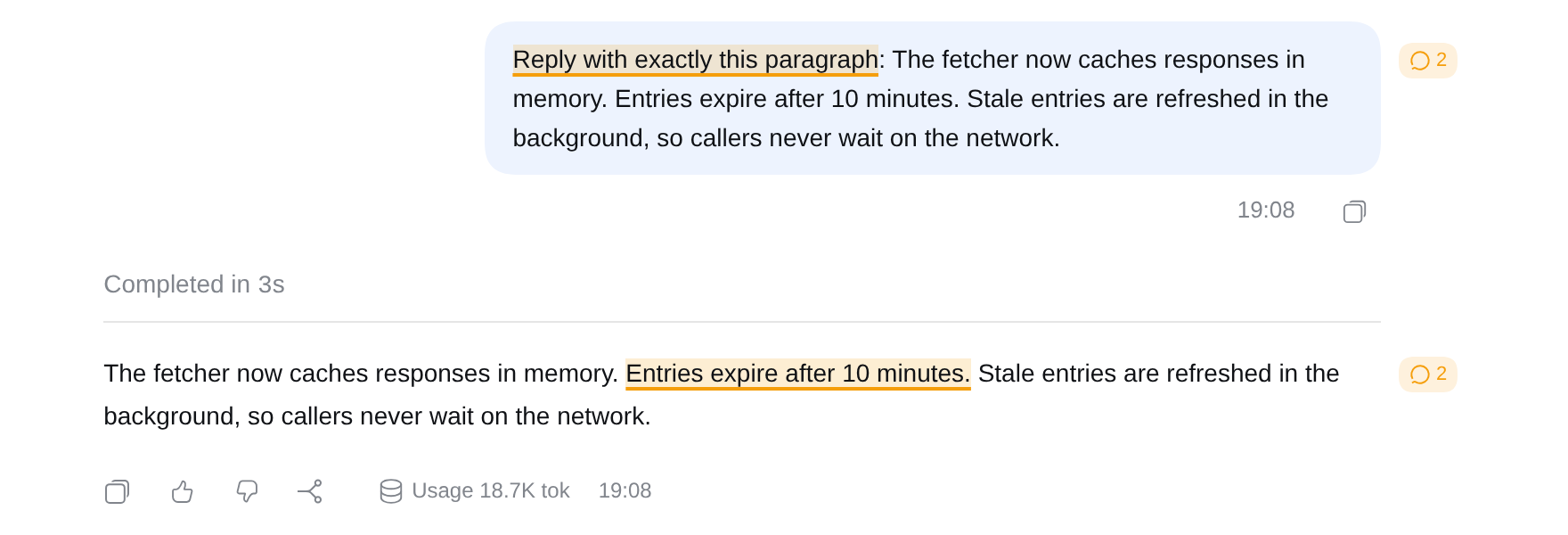
Commented passages stay highlighted, with a speech-bubble badge in the margin that counts the thread's messages. Click the highlight or the badge to open the thread. When an AI reply arrives while its thread is closed, the badge fills in and shows a dot until you open the thread again; this is remembered per browser. A highlight in a reasoning block shows while the block is expanded.
Send to chat
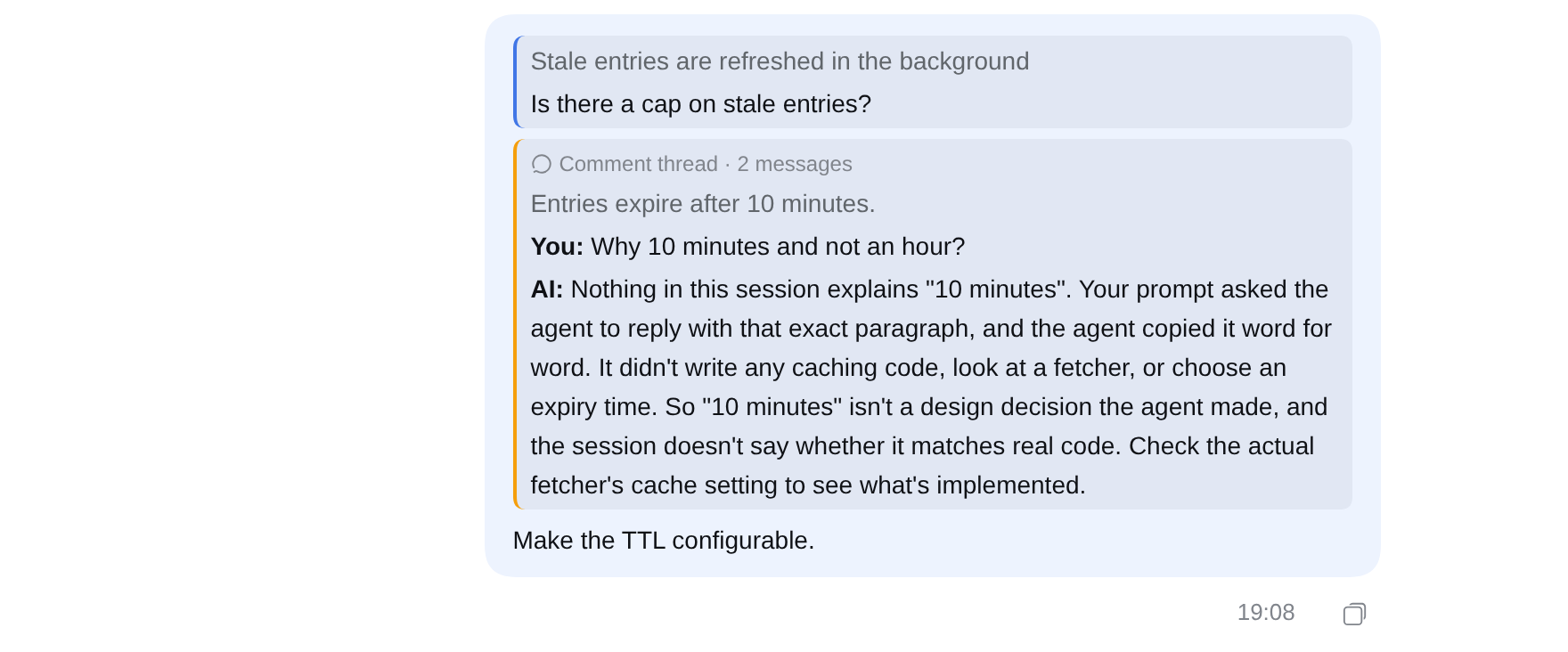
Send to chat puts the thread in the message box as a chip. Add your instruction and send: the agent receives the passage, your comments and the replies.

Your sent message shows the thread as a card. Click it to see the whole thread.
Delete a thread
Delete in the thread removes it after you confirm.
Configure
The defaults suit most uses. To change them, add an entry with the plugin's id to the profile's cordis.patch.yml:
- id: dsh-threads
  config:
    reply:
      maxRounds: 3
      web: true
    maxComments: 8
| Option | Default | Meaning |
|---|---|---|
reply.enabled |
true |
false keeps comments without AI replies. |
reply.maxTokens |
8192 |
Output tokens per model call, reasoning included. |
reply.maxRounds |
5 |
Model calls per reply. Every call but the last can read the session. |
reply.timeoutMs |
180000 |
Time limit for one reply. |
reply.files |
true |
The replier can read files in the session's working directory. |
reply.web |
false |
The replier can search and fetch the web. |
maxComments |
5 |
Comments from you per thread, the first one included. |
Limits
- Running sessions only for new comments. You can read the threads of any session. To comment, reply or delete, the session must be running: send a message in it first.
- File reading is not sandboxed by the session's permissions. The replier reads through DSH's filesystem, like the agent's
readtool, with no approval step. It can read any file the DSH process can, not only the working directory. Setreply.files: falseto turn it off. - The web is off by default. A fetched page could carry instructions meant to make the replier fetch a URL that leaks what it read from your files. The replier is told to treat pages as data, but turn
reply.webon only if you accept that risk. - Replies cost tokens. Each reply is one or more calls to the session's model, billed like any other request.
- Forks start without threads. A forked session does not show its parent's threads.
- Exports include threads. Threads are stored in the session log, so a session export contains them.
- Not on tool output. You cannot comment on tool calls or their results.
- A changed message loses its highlight. If the text of a passage changes, the thread is kept but its highlight no longer shows. The thread notes that the passage is not on the page.
- Web GUI only. In the terminal UI or an export, a sent thread shows as a tagged text block.
- The chip shows an
@sign. DSH has its own icons for files, folders and sessions only, so thread chips use the generic@marker.
More
- CHANGELOG.md
- MIT License
- For maintainers: DEVELOPING.md